Time Travel
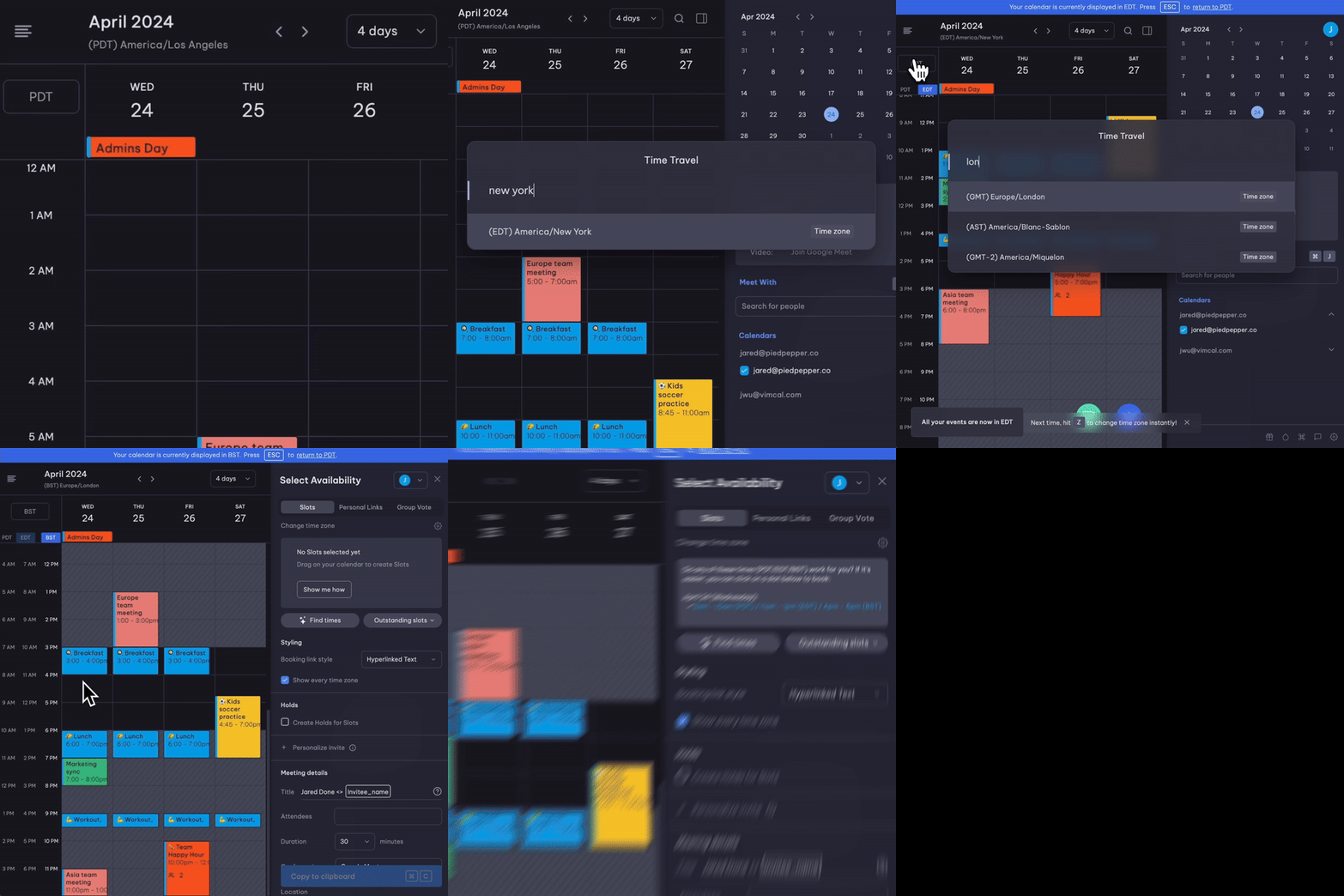
Instantly view any time zone without changing your calendar settings.
Where to find
- The time zone at the very top left of your Vimcal calendar
- "Z" on your keyboard
- Cmd + K (Mac) or Ctrl + K (PC) → type "Time Travel"
- Or click on the top right section of the Slots panel labeled "Change time zone"

Slots and Time Travel
Vimcal features are designed to work in perfect harmony with each other.
Combining Slots and Time Travel allows each meeting participant to see the proposed times from their prospective timezone when initially viewing the email and again when they select a time!
Anchoring time zones
Since you're a Vimcal EA user, it's very possible you're likely scheduling on behalf of multiple people.
Make sure to choose the correct anchored time zones per executive you're logged in as. These settings will not cross over from one login/tab to another, intentionally.
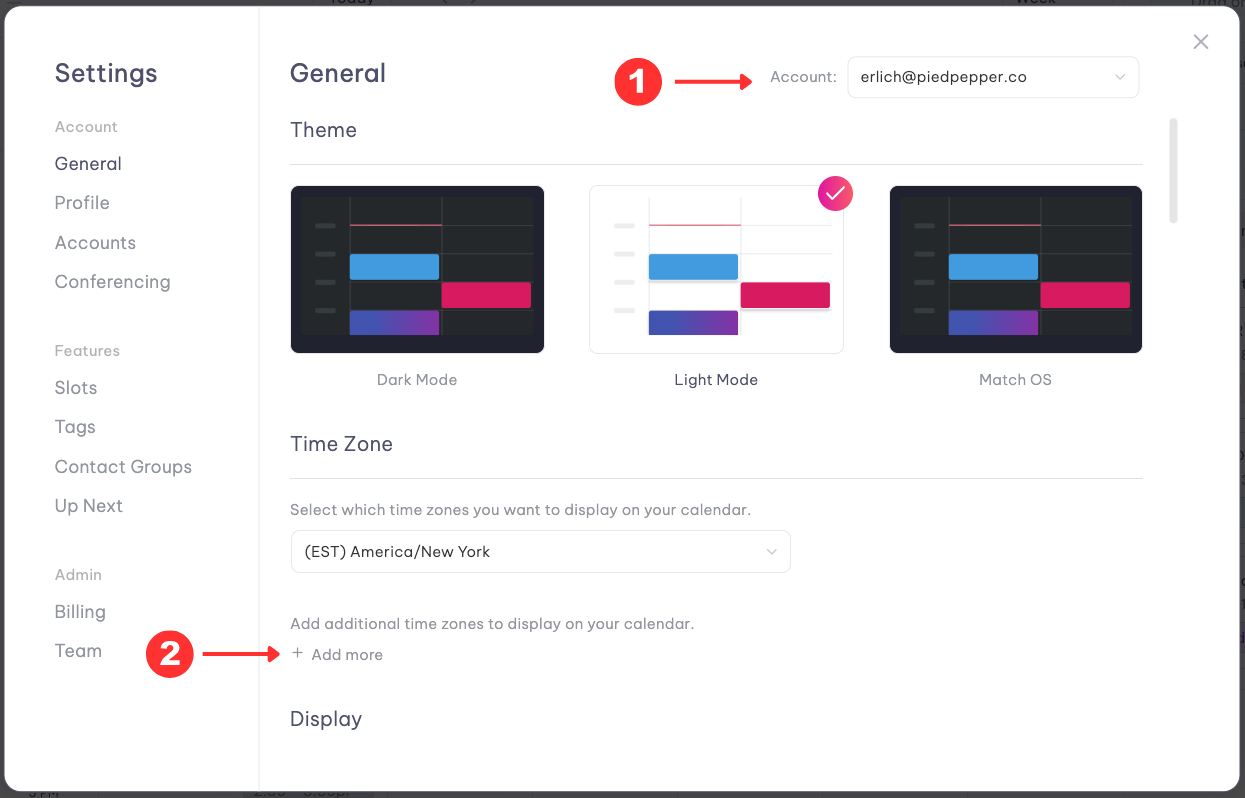
Executive A may be in New York while Executive B may be in Berlin. Therefore, their preferences may vary.
Overlapping work hours
Keeping meetings and other events within work hours is crucial. Quickly set up your preferred working hours in Vimcal.
How to set up:
- Press Cmd + K (Mac) or Ctrl + K (PC) and type in settings
- In the General section, there should be a small sub-section labeled Display
- Here you can adjust your start and end work hours
Note: This will only display when using the Time Travel feature!