Slots
Slots is designed to help you easily share your executive's availability with others in a personalized way. Instead of using a generic scheduling link, you can choose specific time slots and customize the booking experience for each person you share with.
How it works
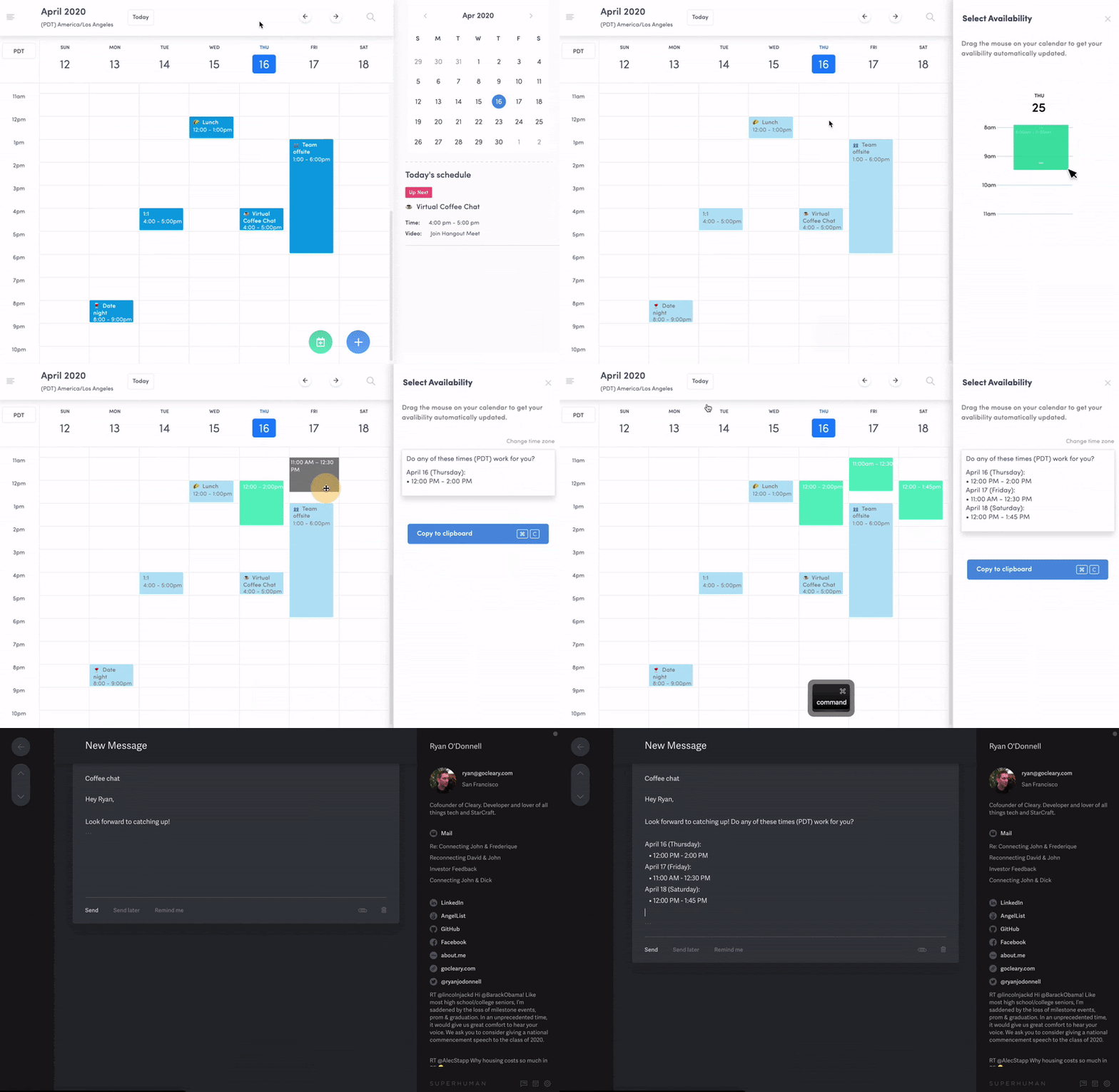
- Select "Slots" from the Quick Actions menu in the side panel.
- Start dragging the available times you want to share. These time slots will be formatted in real-time, ready for you to copy and share.
Time zones
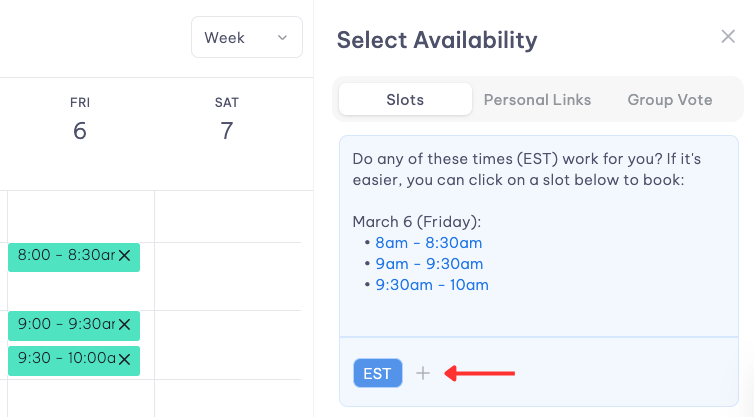
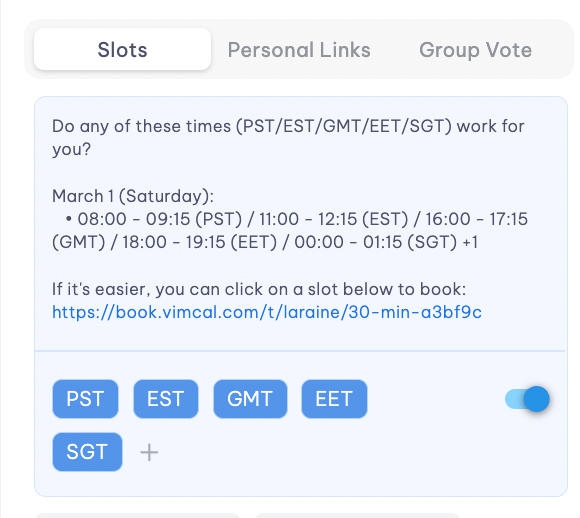
If you need to offer time slots in multiple time zones, click the "Z" button or the "+" sign below the Slots copy.
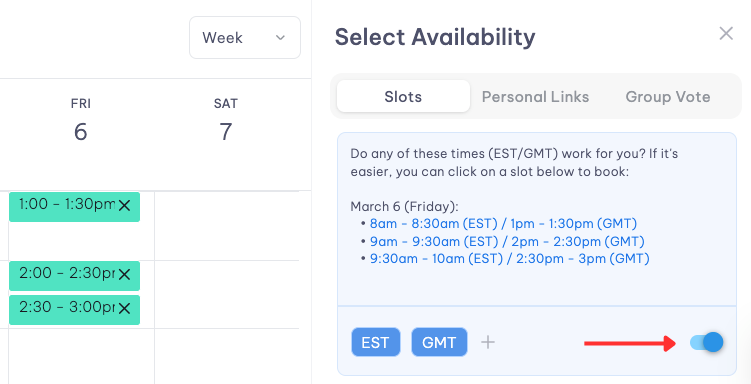
Toggling this ON will allow you to include time slots in the other time zones you've selected.
You can add up to 5 additional time zones.
Holds
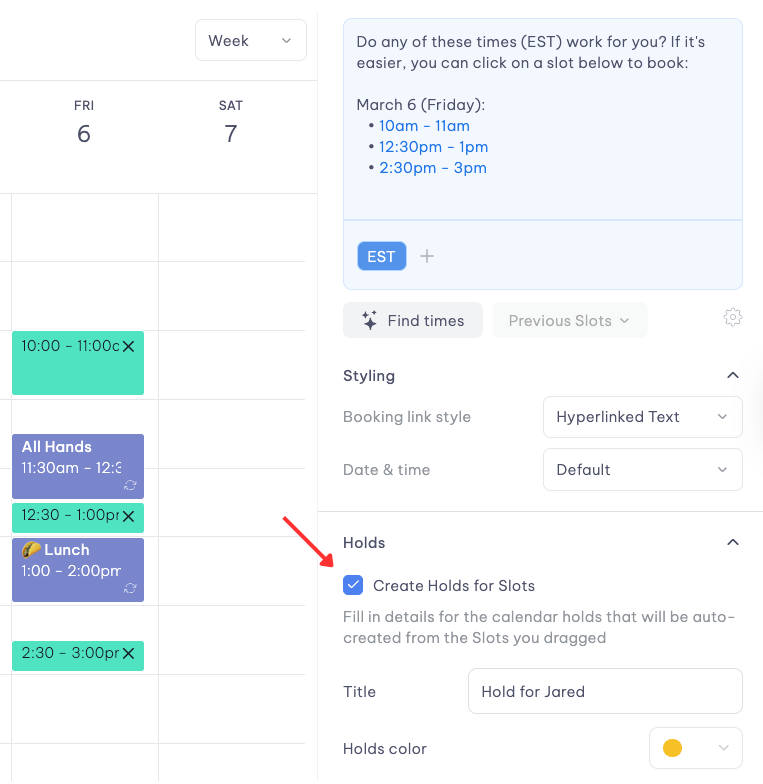
When you share a booking link with multiple time slots, you might want to temporarily reserve some of those times for your guest. The Holds feature lets you place temporary blocks on specific time slots while keeping them available in your booking link.
How to create Holds
- After selecting your availability, expand the "Holds" section.
- You can assign a title and color for these blocks.
How Hold blocks are removed
One of the most convenient aspects of the Hold feature is its intelligent automatic cleanup. Hold blocks are designed to disappear depending on how the meeting is booked:
Booking link
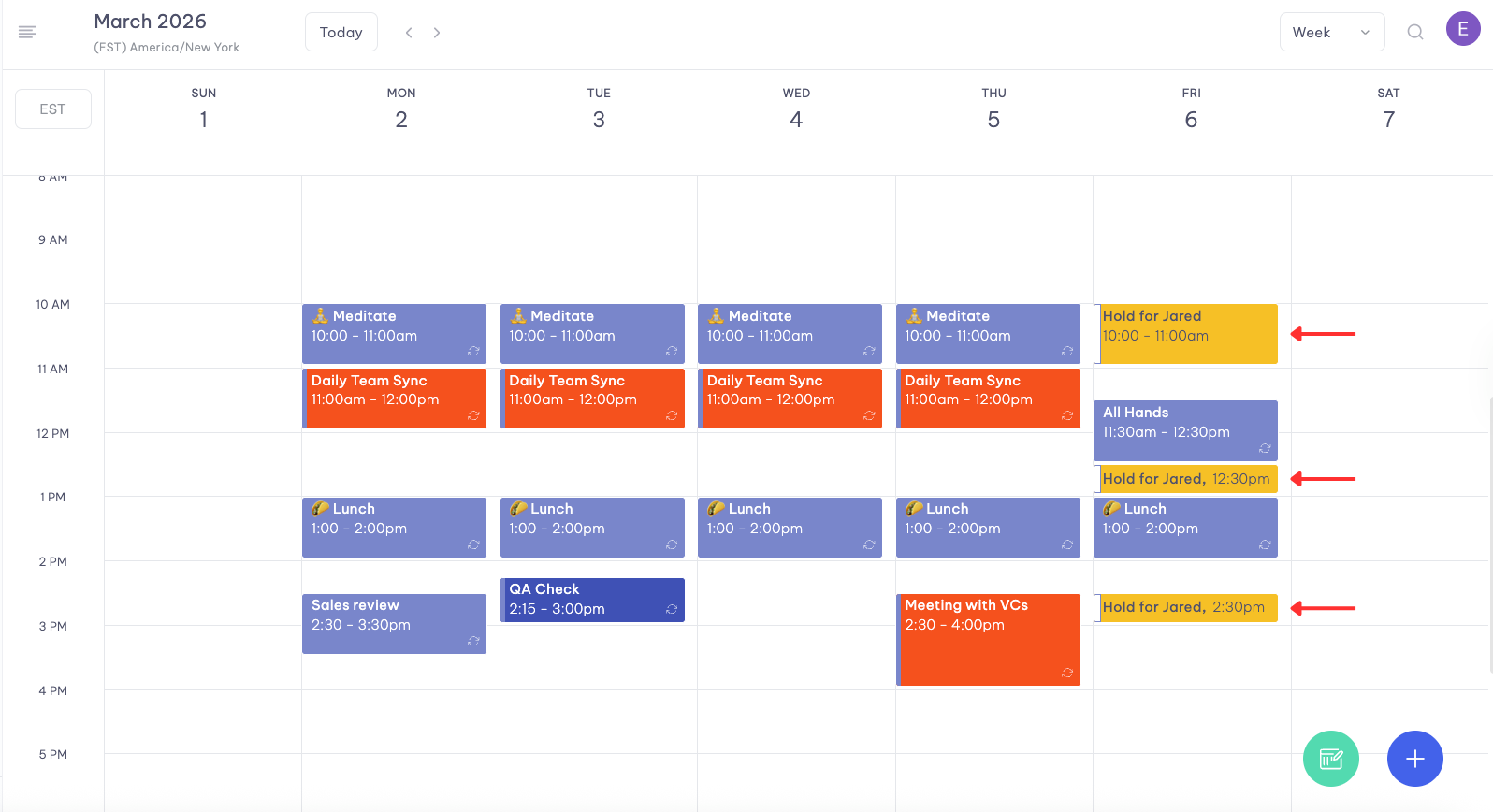
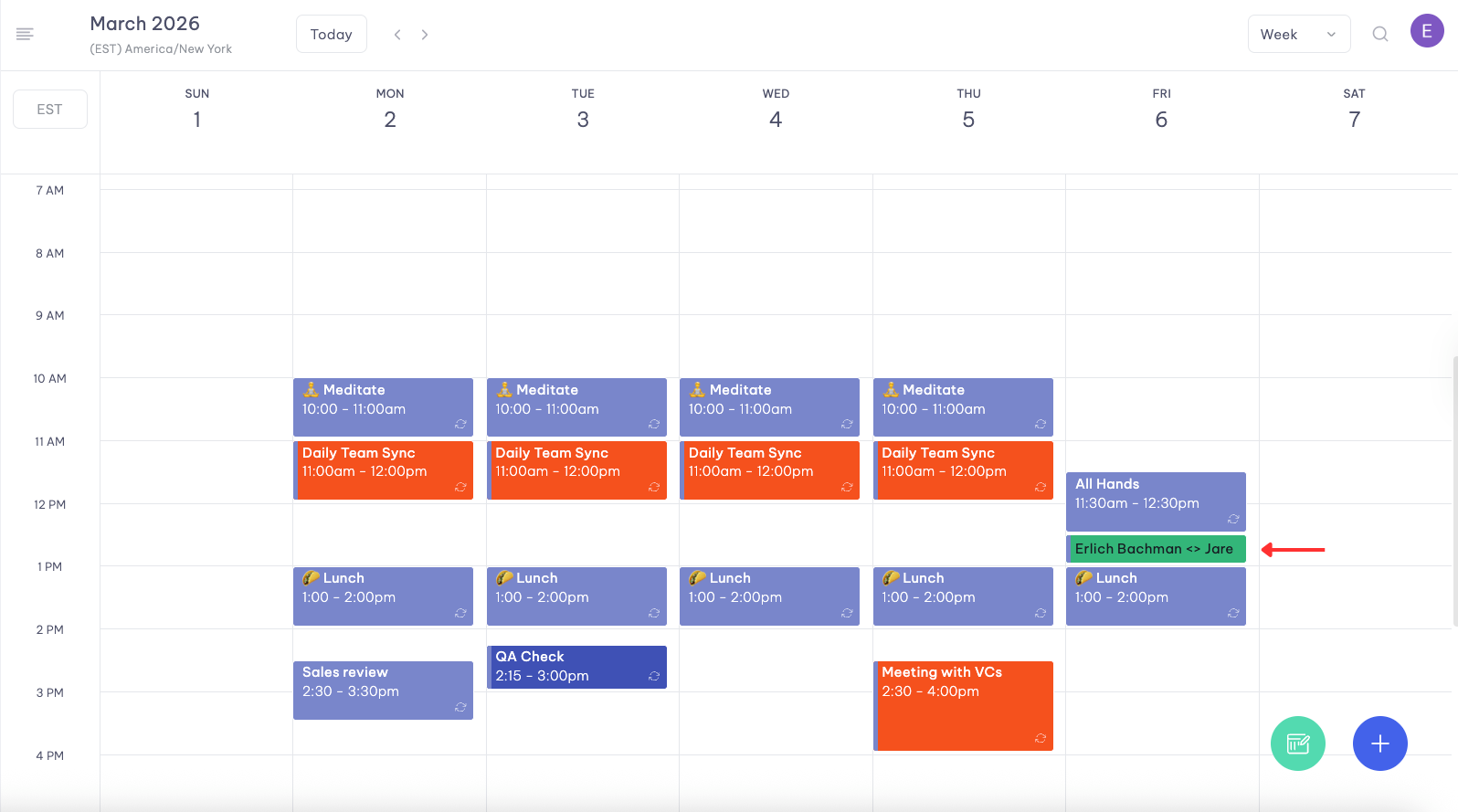
When a guest schedules their meeting from your Slots booking link, any corresponding Hold blocks are automatically removed from the calendar.
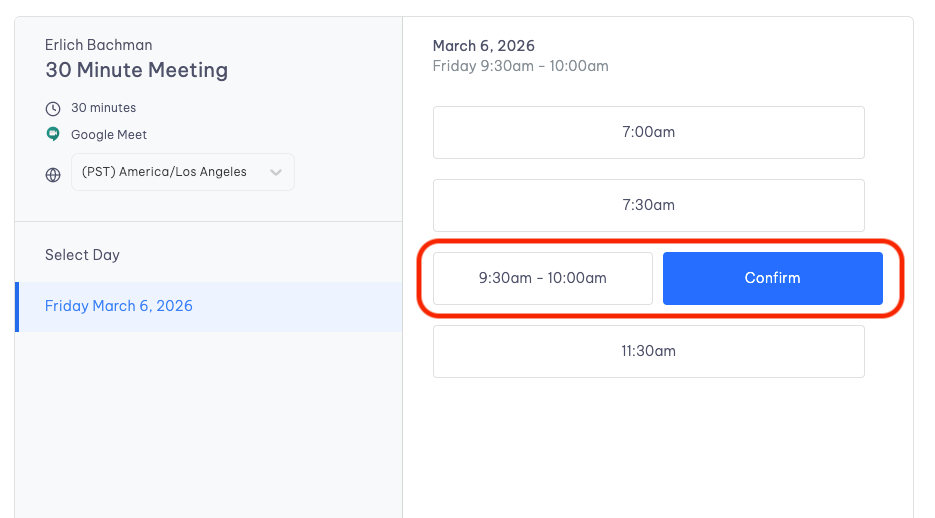
This eliminates the need for EAs to manually clean up these temporary placeholders, saving valuable time and reducing calendar clutter.
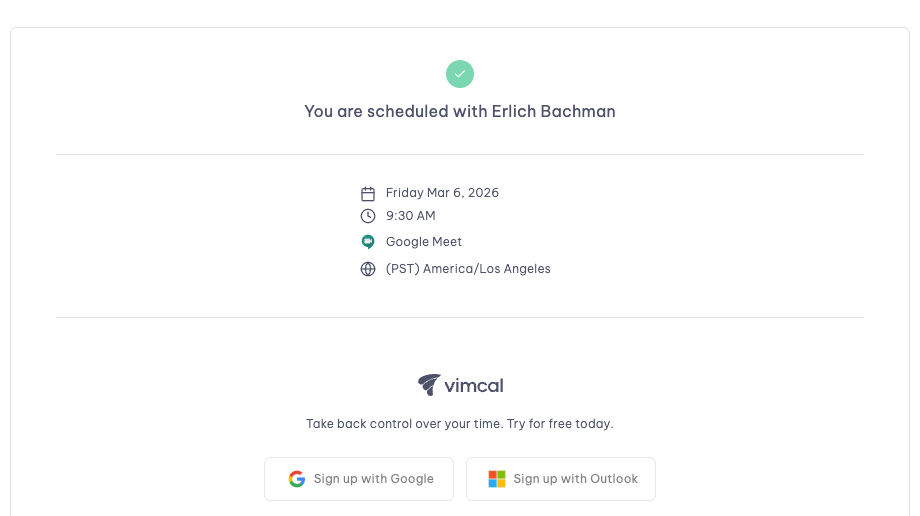
Before:
After:
Manual event creation
When a guest schedules their meeting by sending over times instead of using a booking link, creating an event from your Hold blocks is still effortless.
When a recipient replies with a time that works, you can convert any Smart Hold into the meeting in two clicks:
- After a guest has informed you of their preferred time, simply click on the desired Hold block.
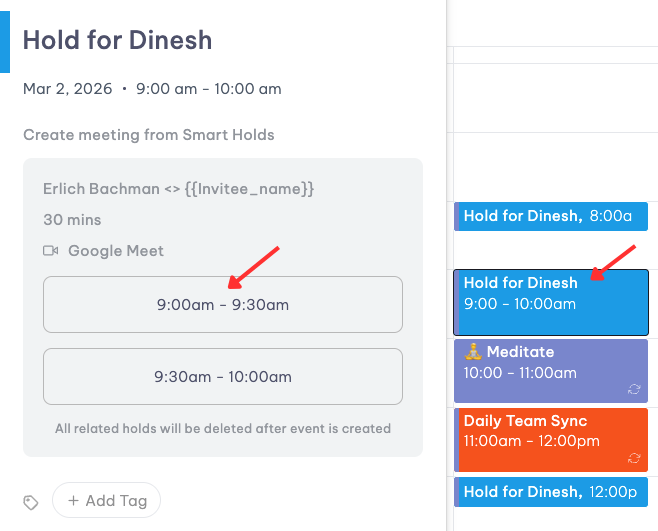
- All other related Hold blocks will be automatically cleared once the event is created.
High-priority meetings
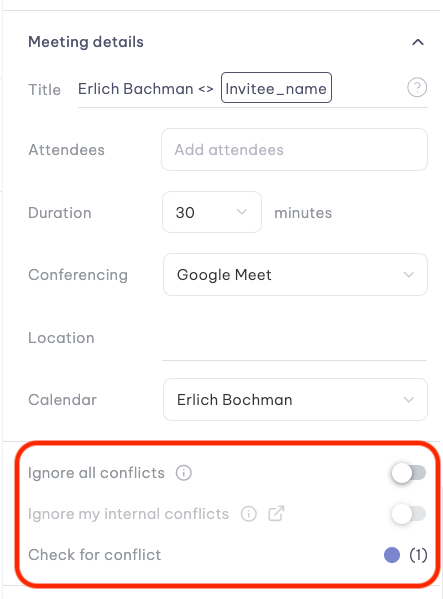
Sometimes you may want to allow certain meetings to take priority over existing calendar events. We offer two options to help you manage these scheduling priorities:
Ignore Conflicts
This option allows your guests to book meetings even when you have existing events scheduled for those time slots.
Use this for when:
- You're willing to reschedule any existing commitments for these meetings
- You want to keep time slots available regardless of your current calendar status
- You need maximum flexibility for high-priority bookings
Ignore Internal Conflicts
This option specifically lets guests book over calendar events with internal teammates while respecting external commitments.
It's perfect for when:
- You want to prioritize external meetings over internal events
- Your calendar contains internal blocks or tentative holds that can be moved
Note: You can define which email addresses and company domains count as an "internal" meeting by going to the Command Center (Cmd + K for Mac or Ctrl + K for PC) > Go to settings > General > Internal Domains and Emails.
Both options help you maintain scheduling flexibility while ensuring high-priority meetings can be booked when needed.
You can find them under the "Meeting details" section.
Previously sent
There may be times when you want to look at the times that you've sent out or reuse time slots you've already offered.
The "Previously Sent" feature allows you to do this quickly, without having to start from scratch.
How it works
- Type "A" or select Slots under Quick Actions from the sidebar.
- Click "Previously sent" and it will pull up the time slots you offered.
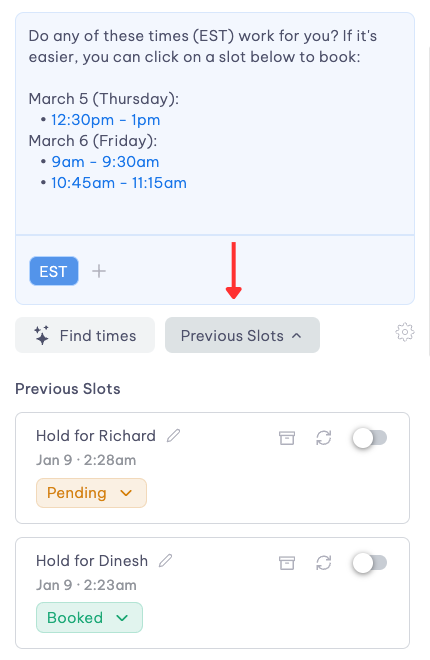
You'll see three icons when viewing your previously sent Slots:
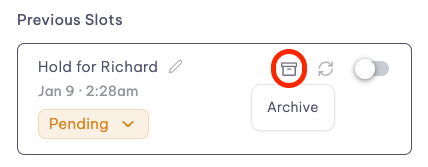
- Archive — Selecting this will archive the booking link.
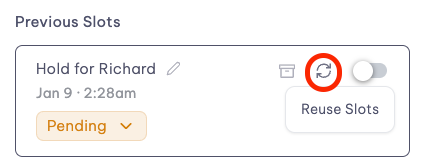
- Reuse Slots — Use this option if you'd like to create a new booking link with the same times you've already offered.
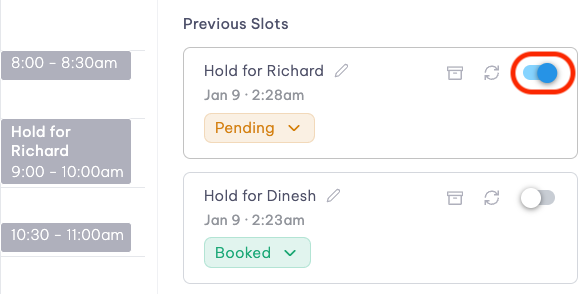
- View — Toggling this ON will display the time slots on the calendar so you can plan around them.