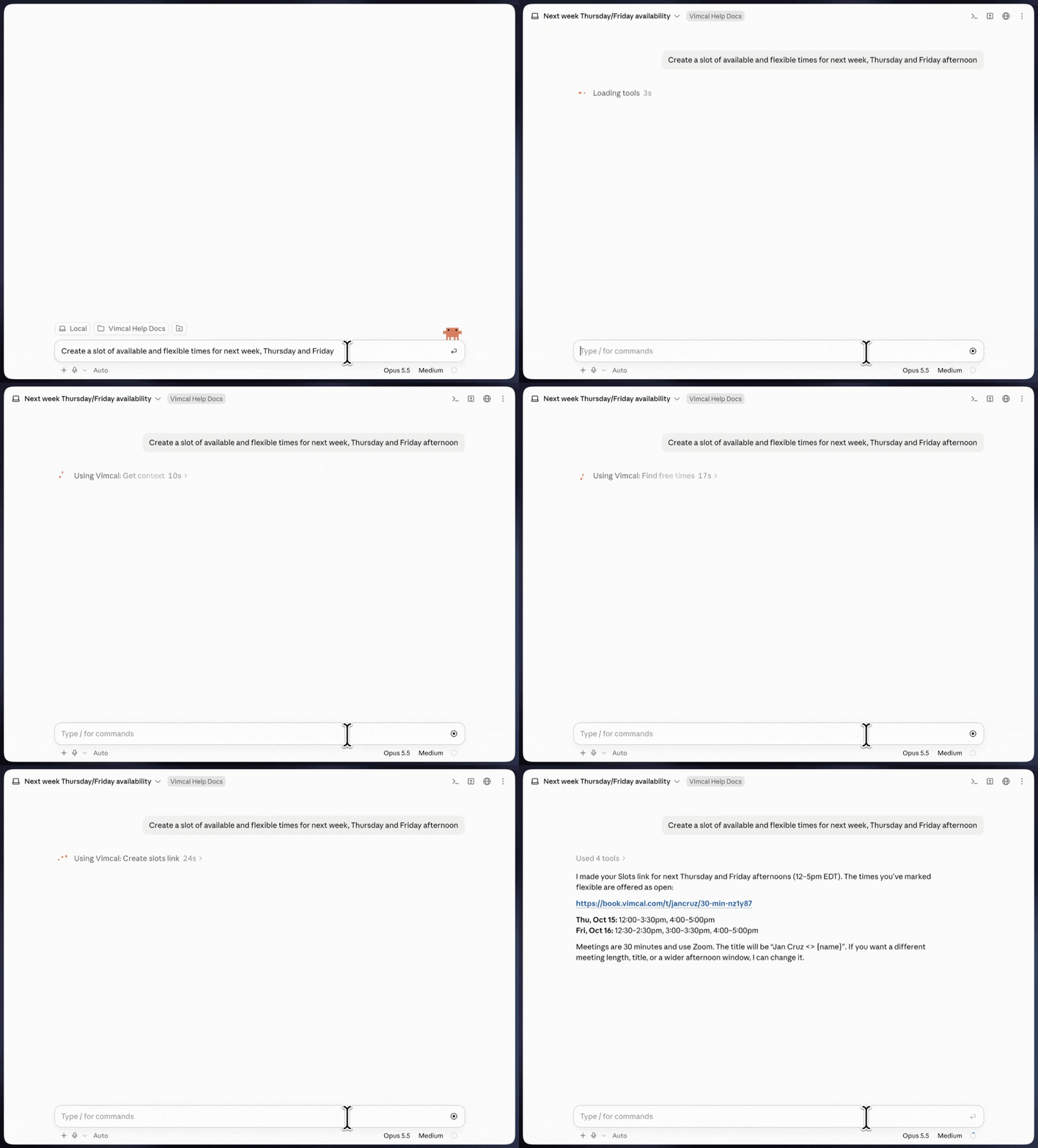
MCP
Connect Vimcal via MCP to your AI assistant for an intelligent, seamless scheduling experience.
How to set up Vimcal MCP for Claude
For the team admin
- Go to your team's organization settings in Claude.
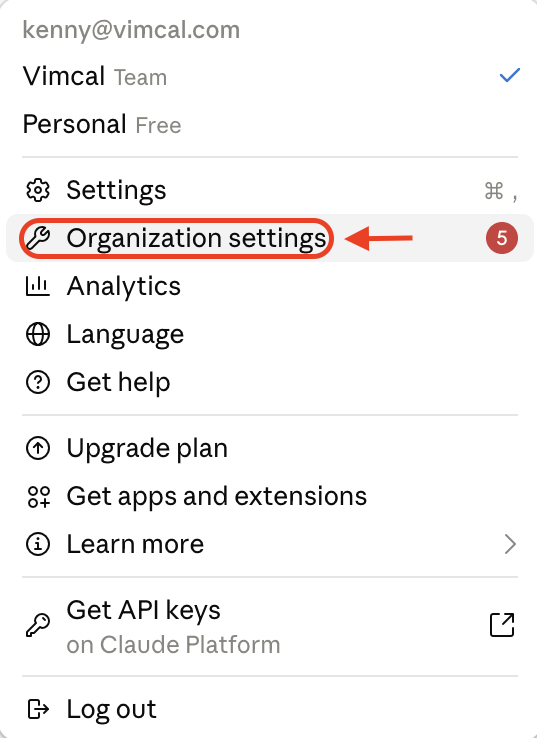
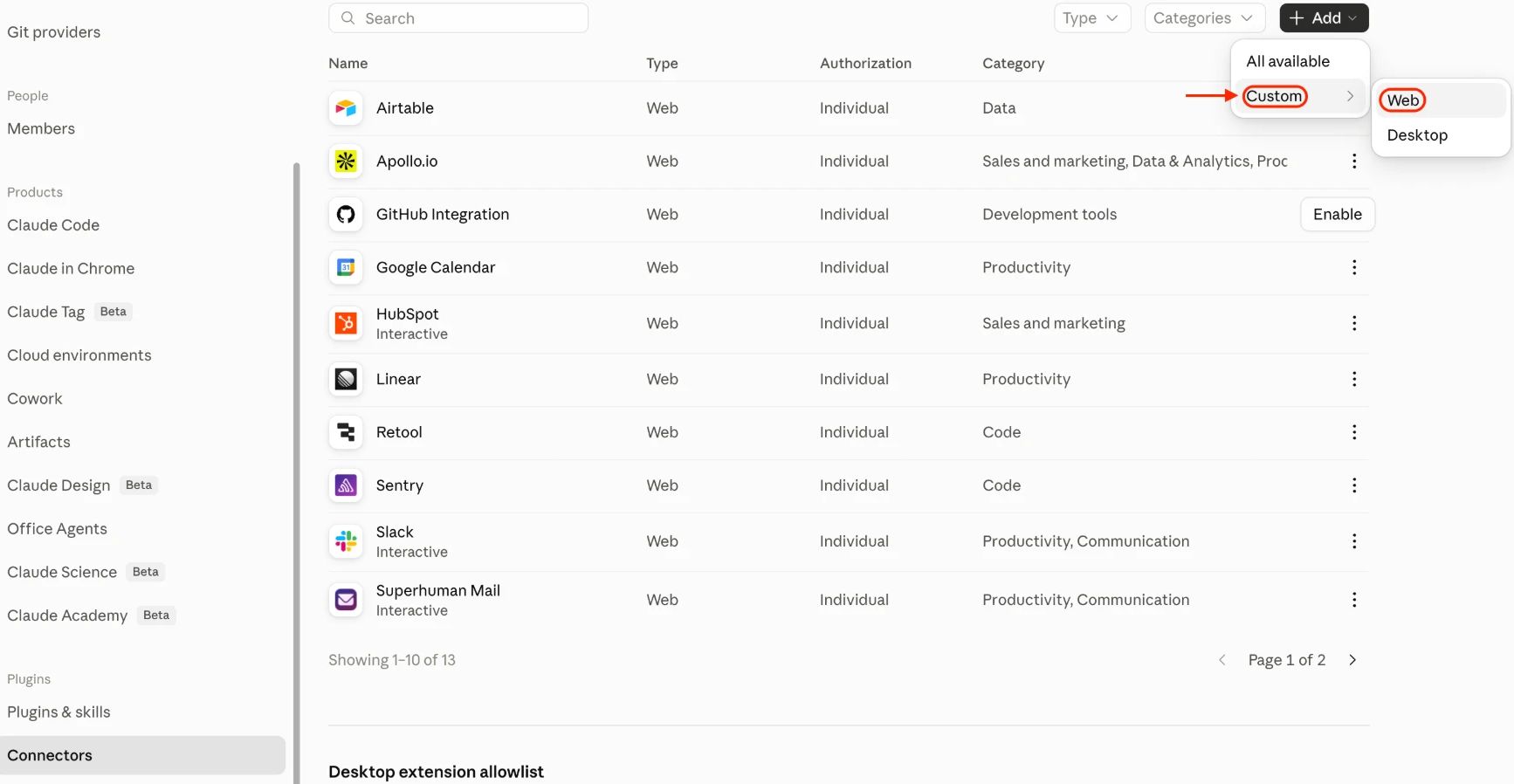
- Open the Connectors page in the Plugins section.
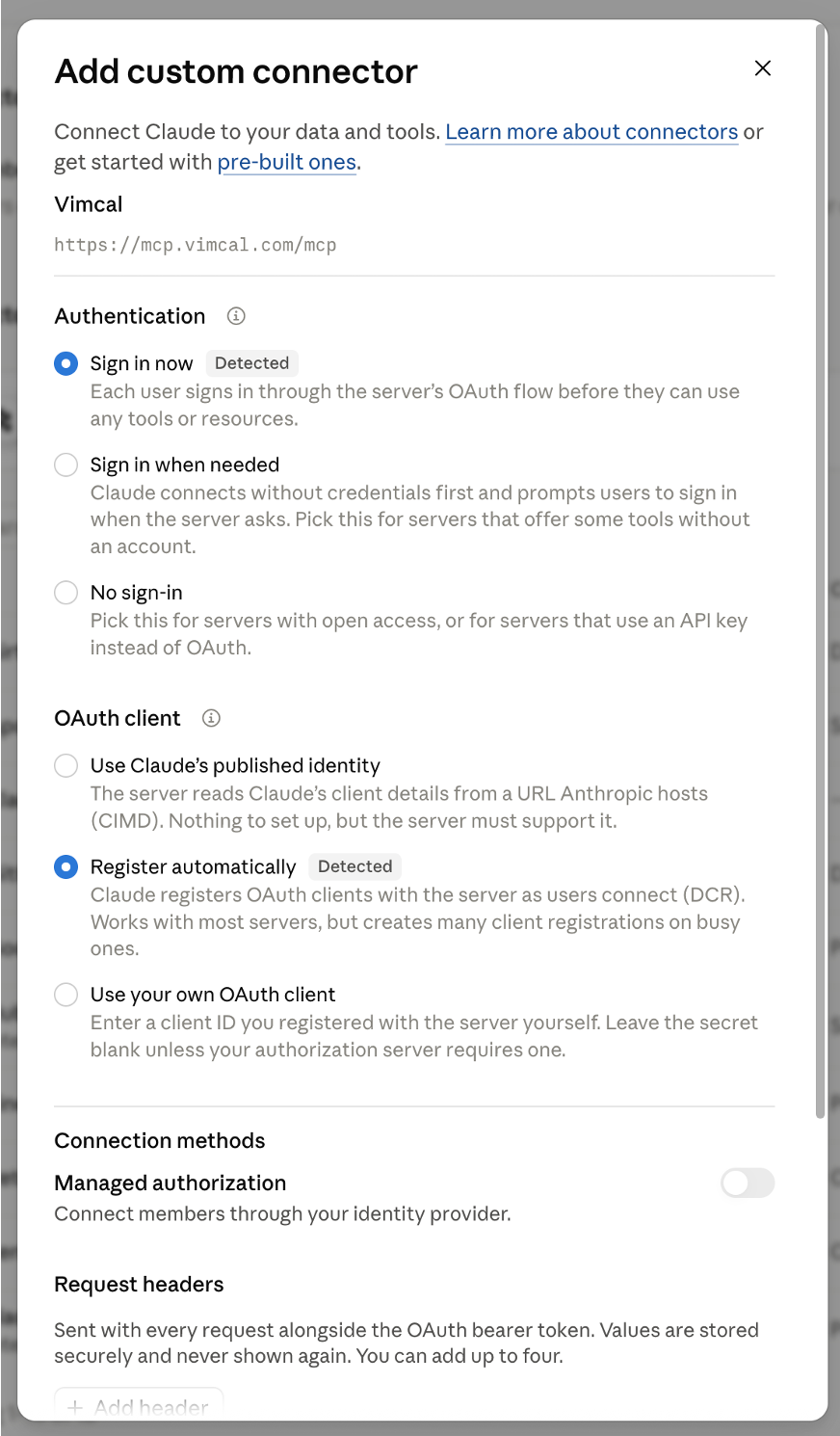
- Add a Custom Web connector.
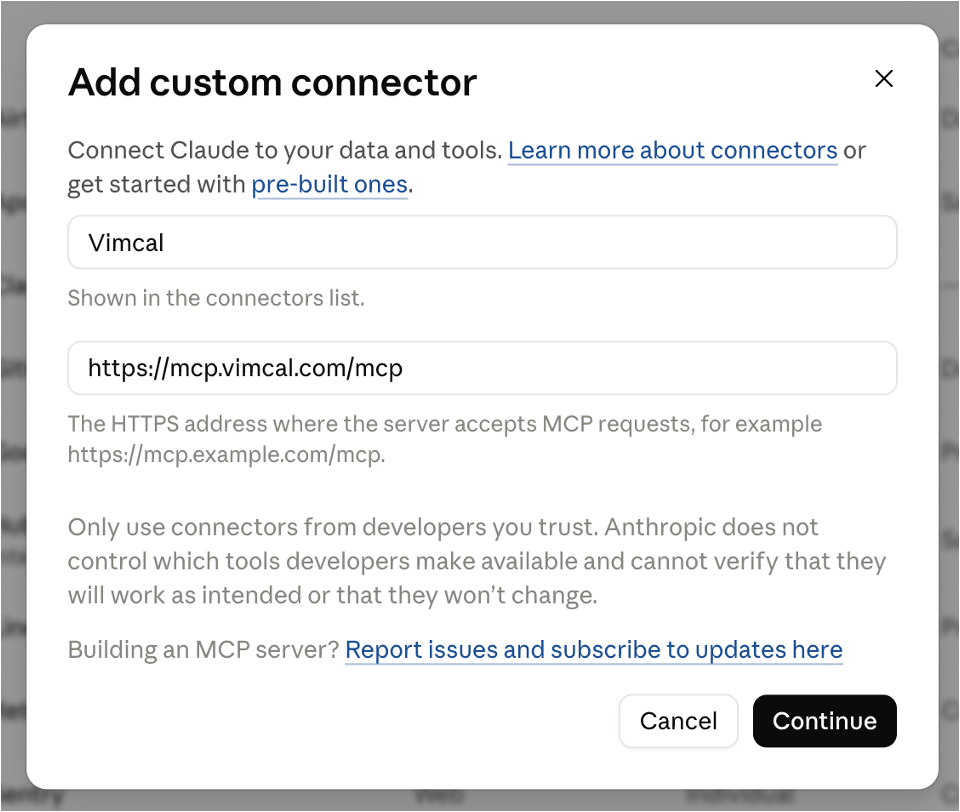
- Set the name as Vimcal and the MCP server URL as
https://mcp.vimcal.com/mcp.
- Leave the default options on the next screen, and click the Add button at the bottom.
For each user
- Go to your user settings in Claude.
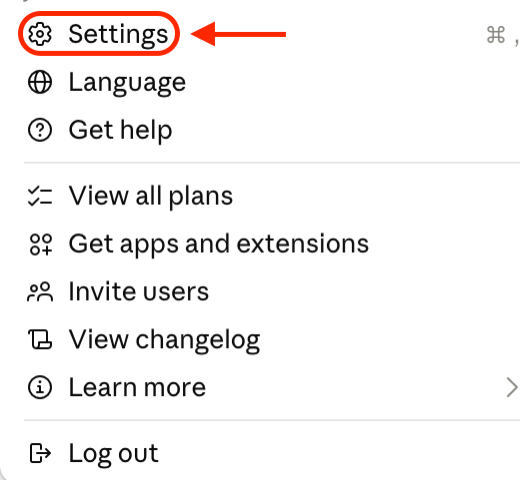
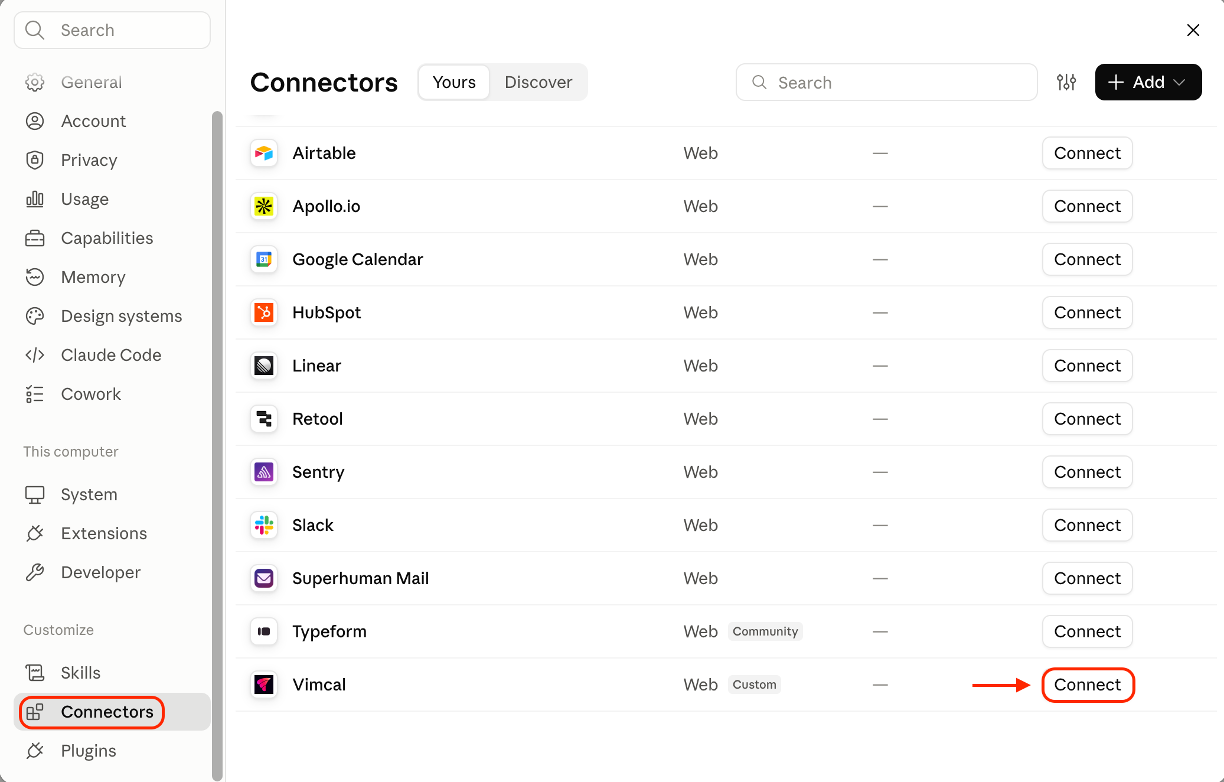
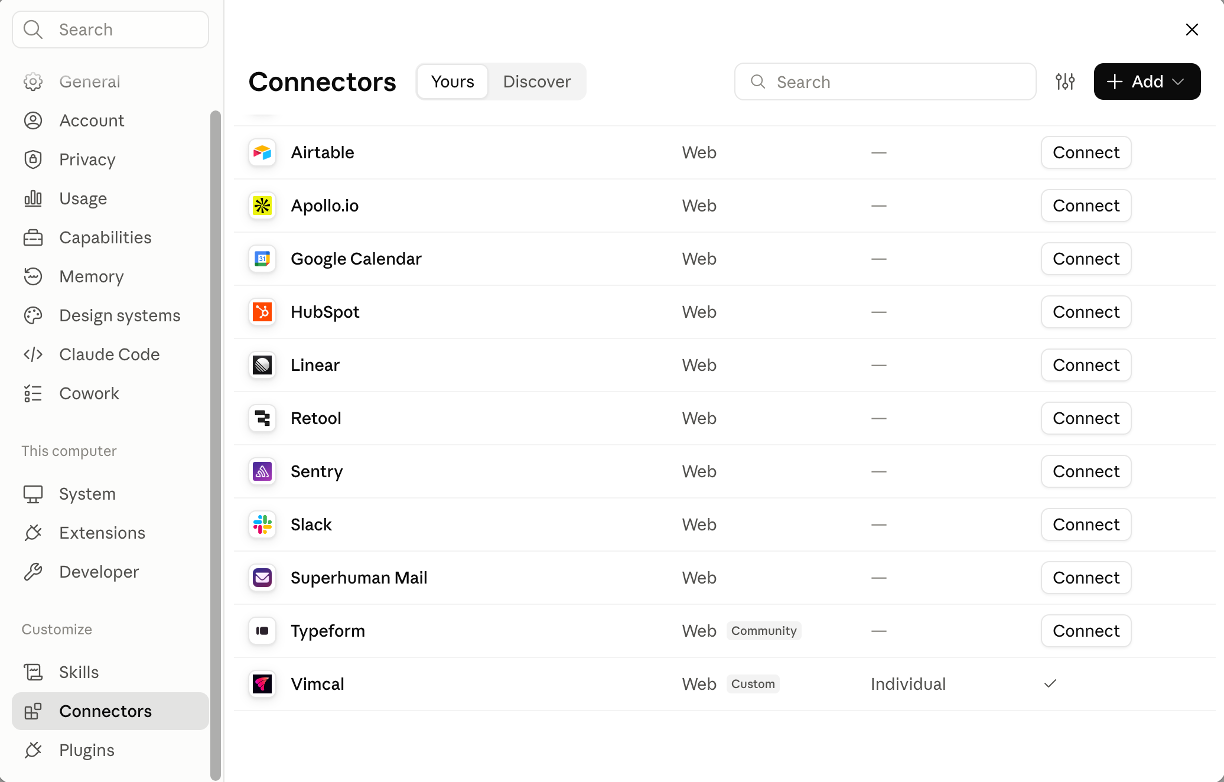
- Open the Connectors page in the Customize section.
- Find the Vimcal connector and click the Connect button.
- You will then be prompted to sign in to your Vimcal account.
- After signing in, you'll need to allow Claude access to your Vimcal calendar.
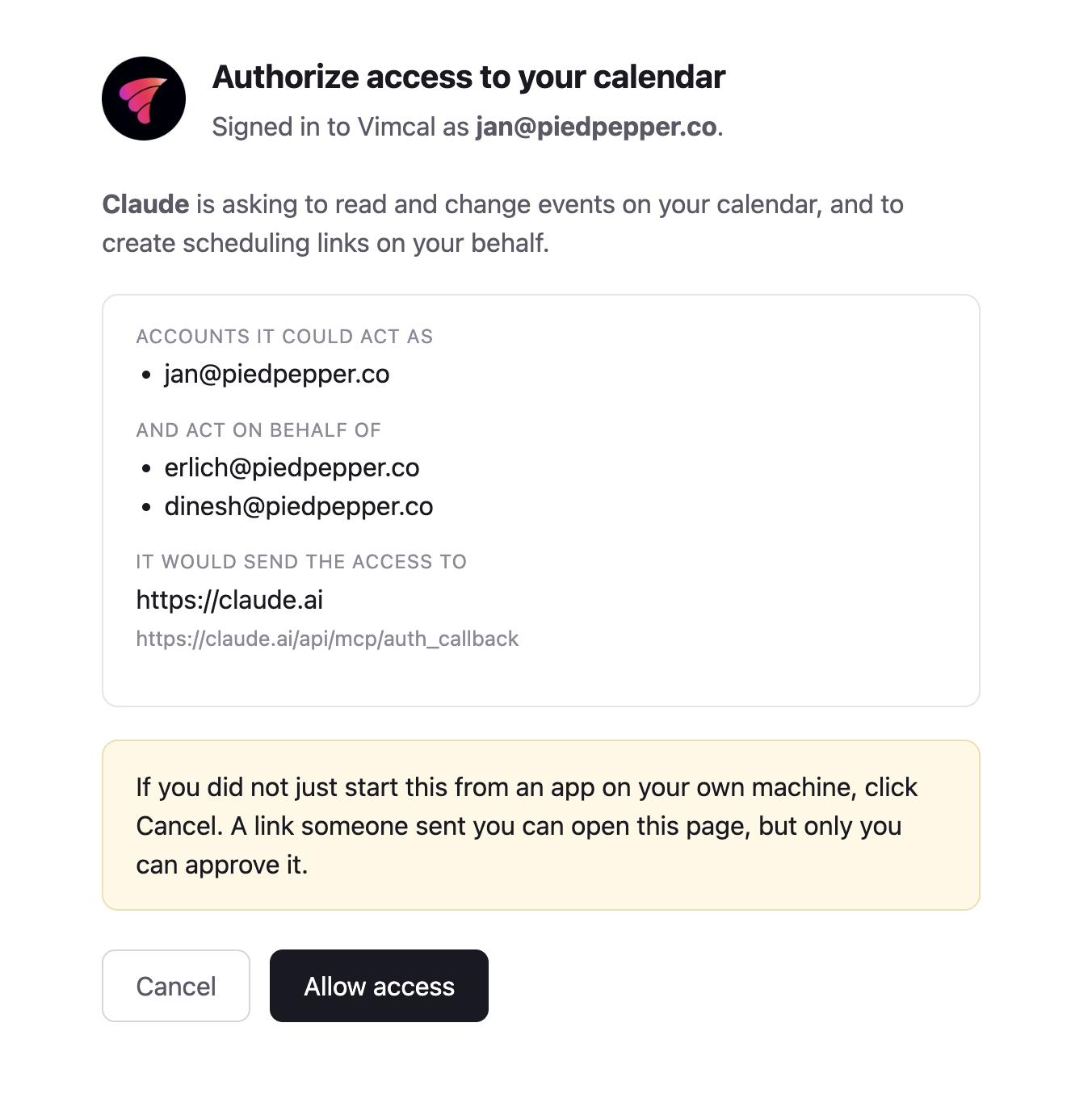
- After allowing access, you'll be prompted back to Claude where you can verify that it is now connected.
What you can do
With Vimcal connected to your AI assistant via MCP, your scheduling experience is now smarter, faster and seamlessly connected.
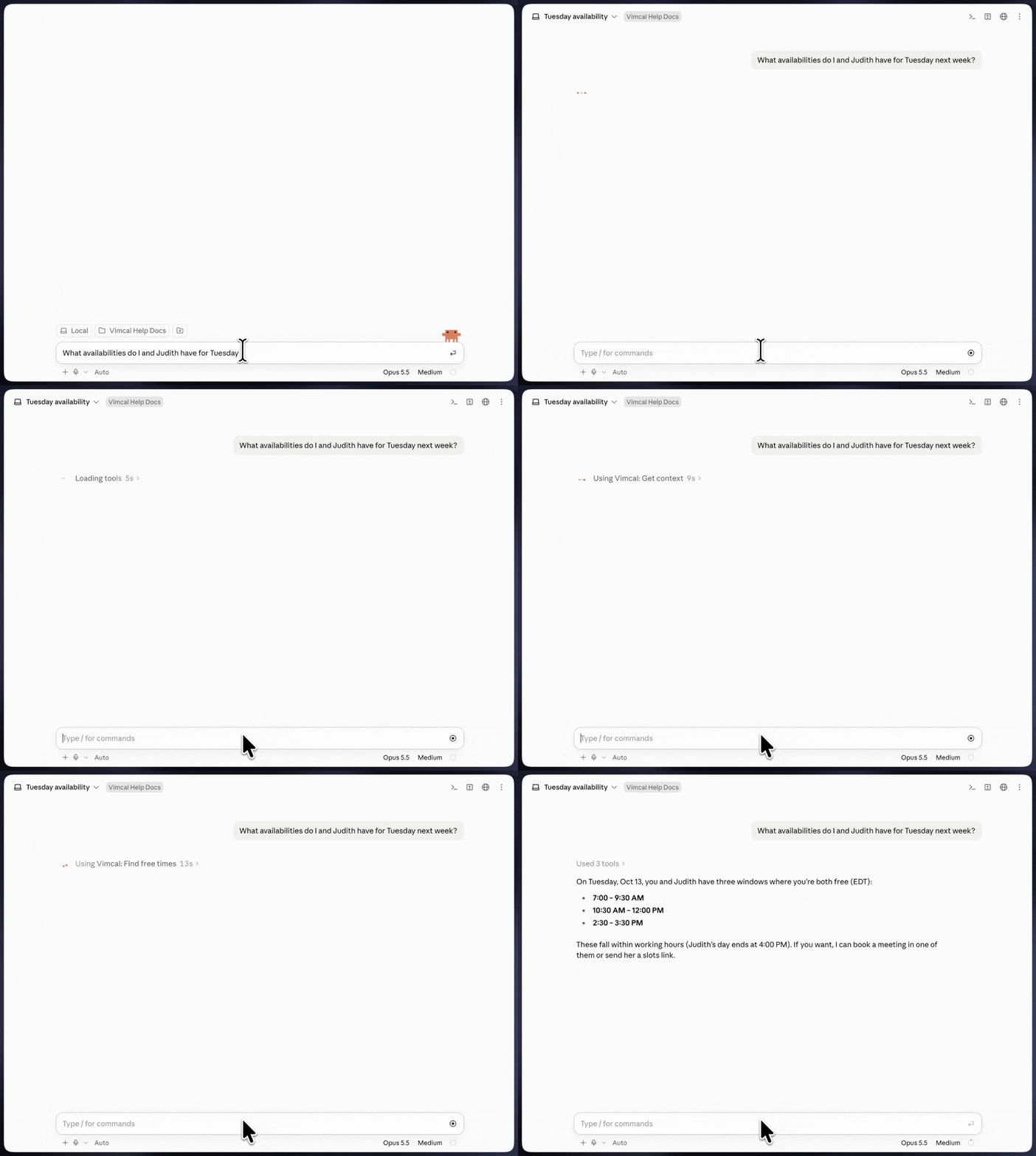
Find available times
Effortlessly check availability across calendars, across time zones and Vimcal's flexible priority settings, then instantly create the meeting or generate a booking link to share.
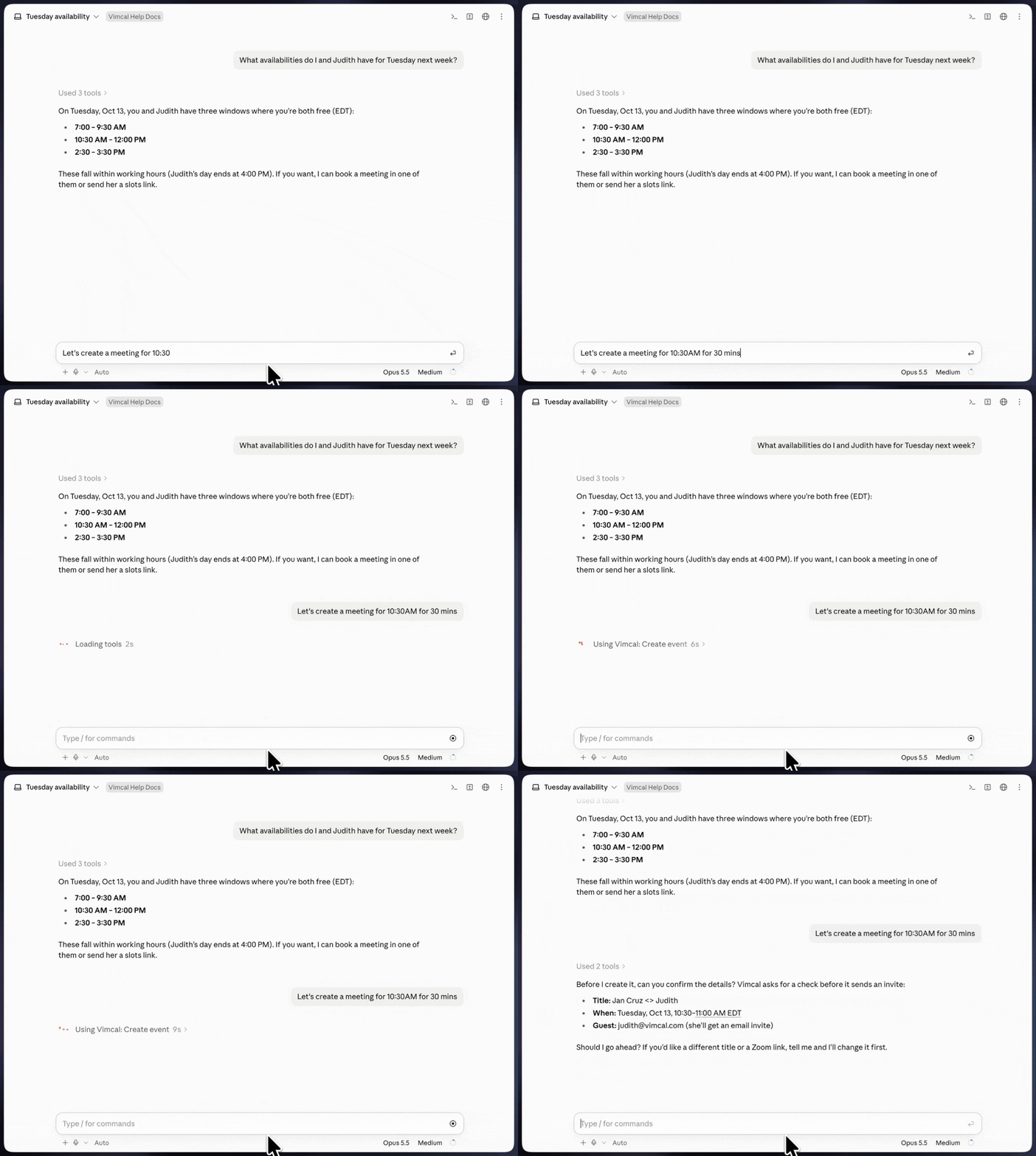
Create meetings
Vimcal lets you instantly create and customize meeting titles, durations and recurrence through your AI assistant.
Generate slots
Our Slots feature lets your AI assistant instantly generate booking links and shareable time lists through simple conversation, making scheduling faster and more effortless than ever.