Connect Zoom, Teams, & Meet
As an Executive Assistant, you'll need to set up video conferencing integrations for your execs and yourself to create conferencing links when scheduling. This guide explains how to configure conferencing options for both yourself and your executives.
Automatic conferencing setup
- Microsoft Teams: Automatically configured for Microsoft Outlook accounts (no setup required)
- Google Meet: Automatically configured for Google Workspace accounts (no setup required)
Zoom configuration
For Zoom integration, you'll need to authenticate your account in Vimcal.
For EAs: Authenticating your Zoom account
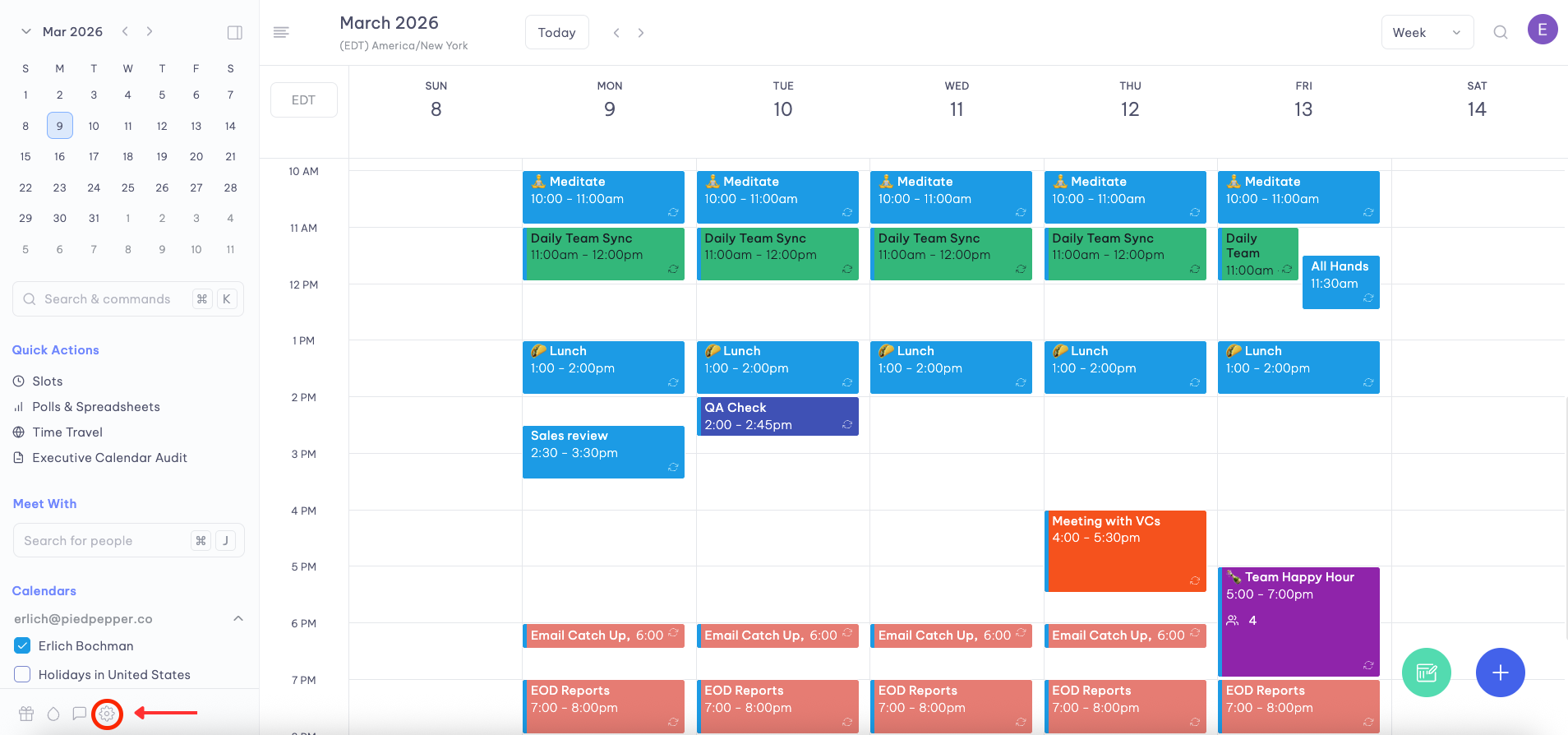
- Click on the gear icon on the bottom right of your screen to access your settings
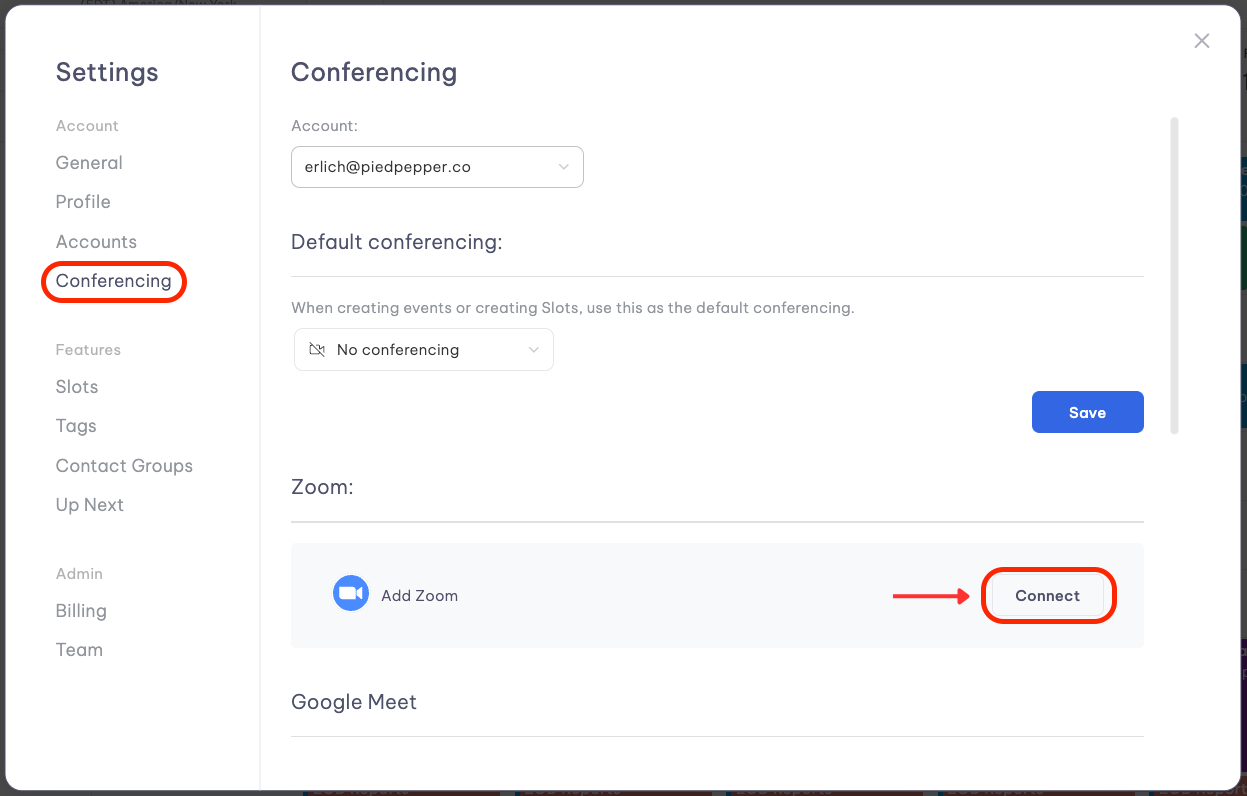
- Select "Conferencing settings" in the left menu bar
- Click the Login button under the Zoom settings
- In the Zoom pop-up window, sign in with your work email account — you may need to scroll down to see all sign-in options
- Important: Check the box labeled "Allow this app to use my shared access permissions" — you will not be able to create Zoom links on behalf of your executives without checking this box.
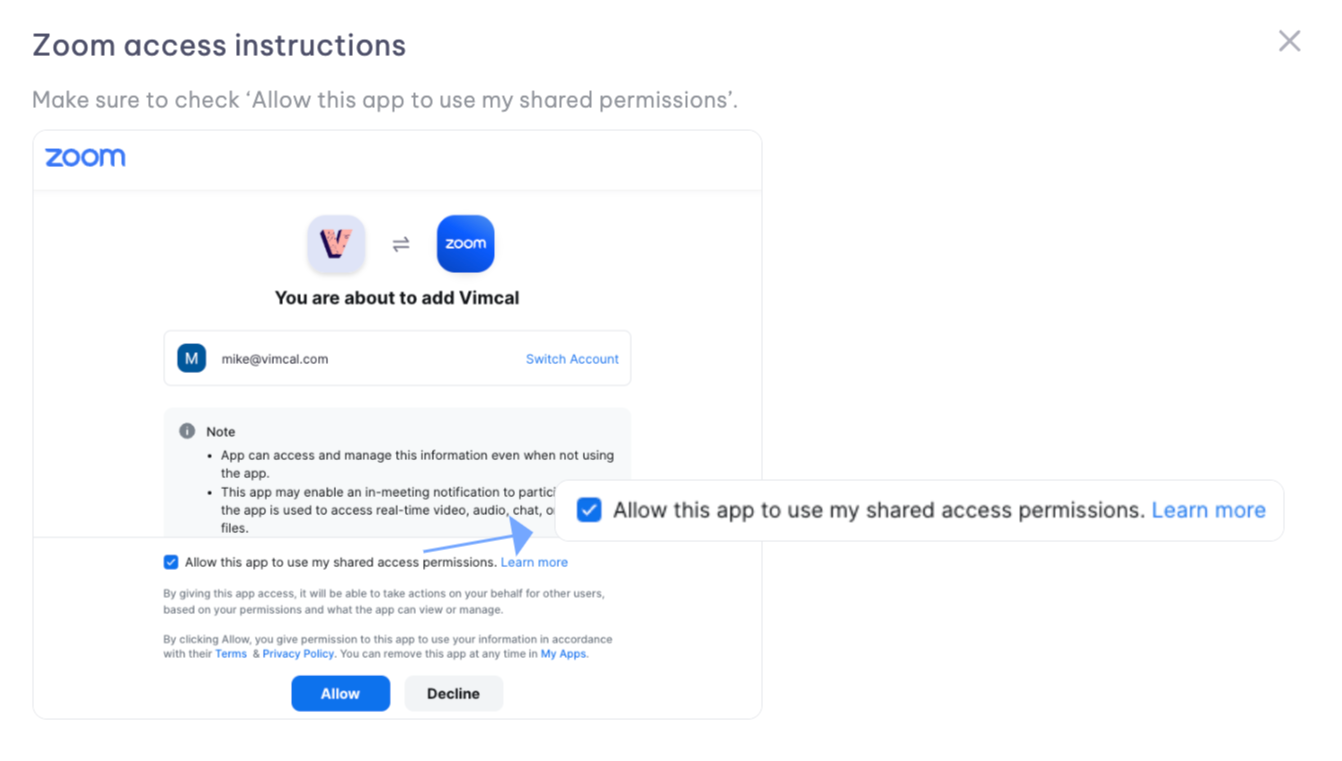
- Click the blue Allow button
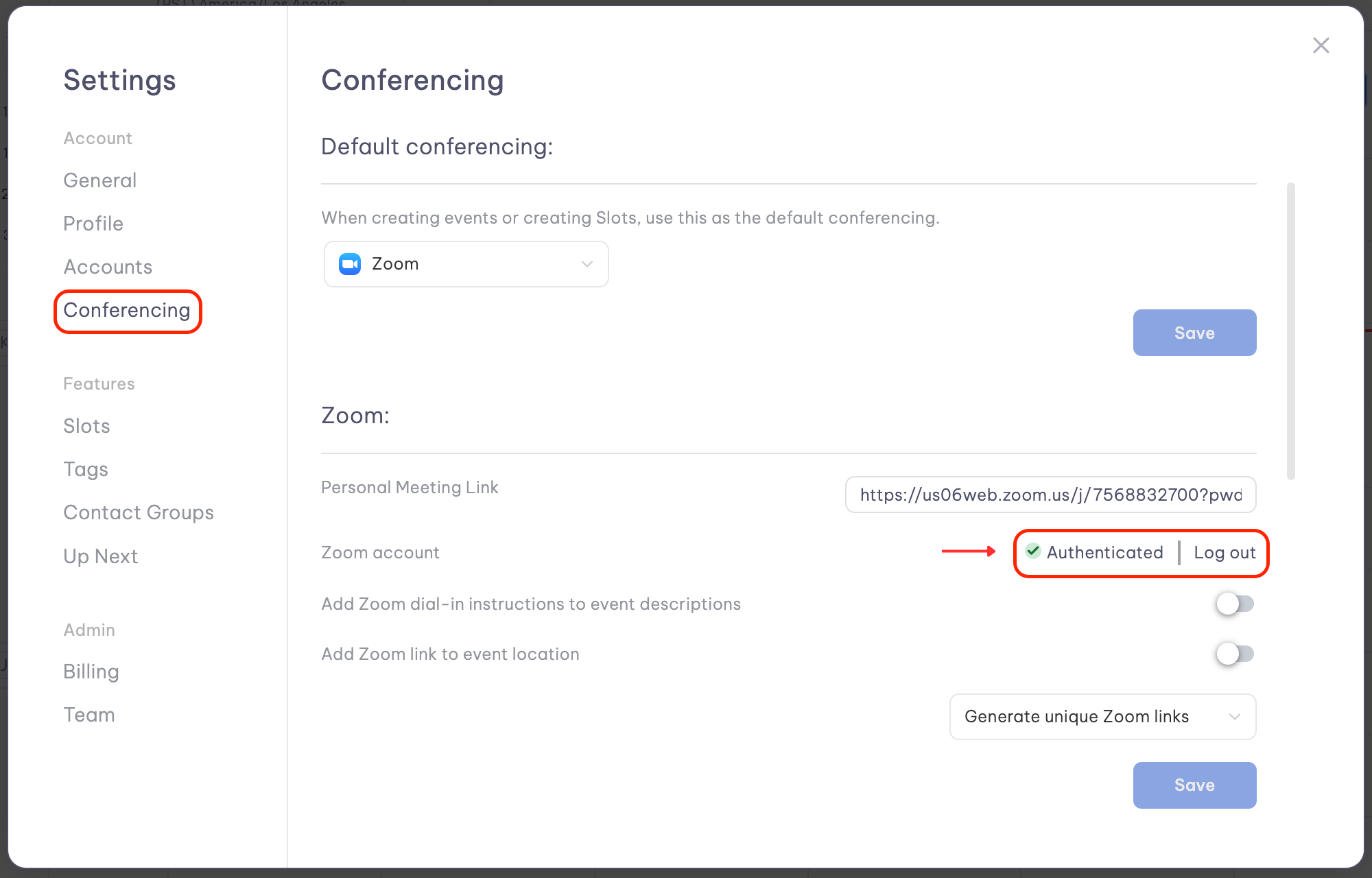
- Verification: The word "Authenticated" should replace the Login button when complete
Zoom scheduling privileges
Most EAs already have Zoom scheduling privileges for their executives. To verify this:
- Navigate to one of your executive's accounts in the dropdown above your conferencing settings
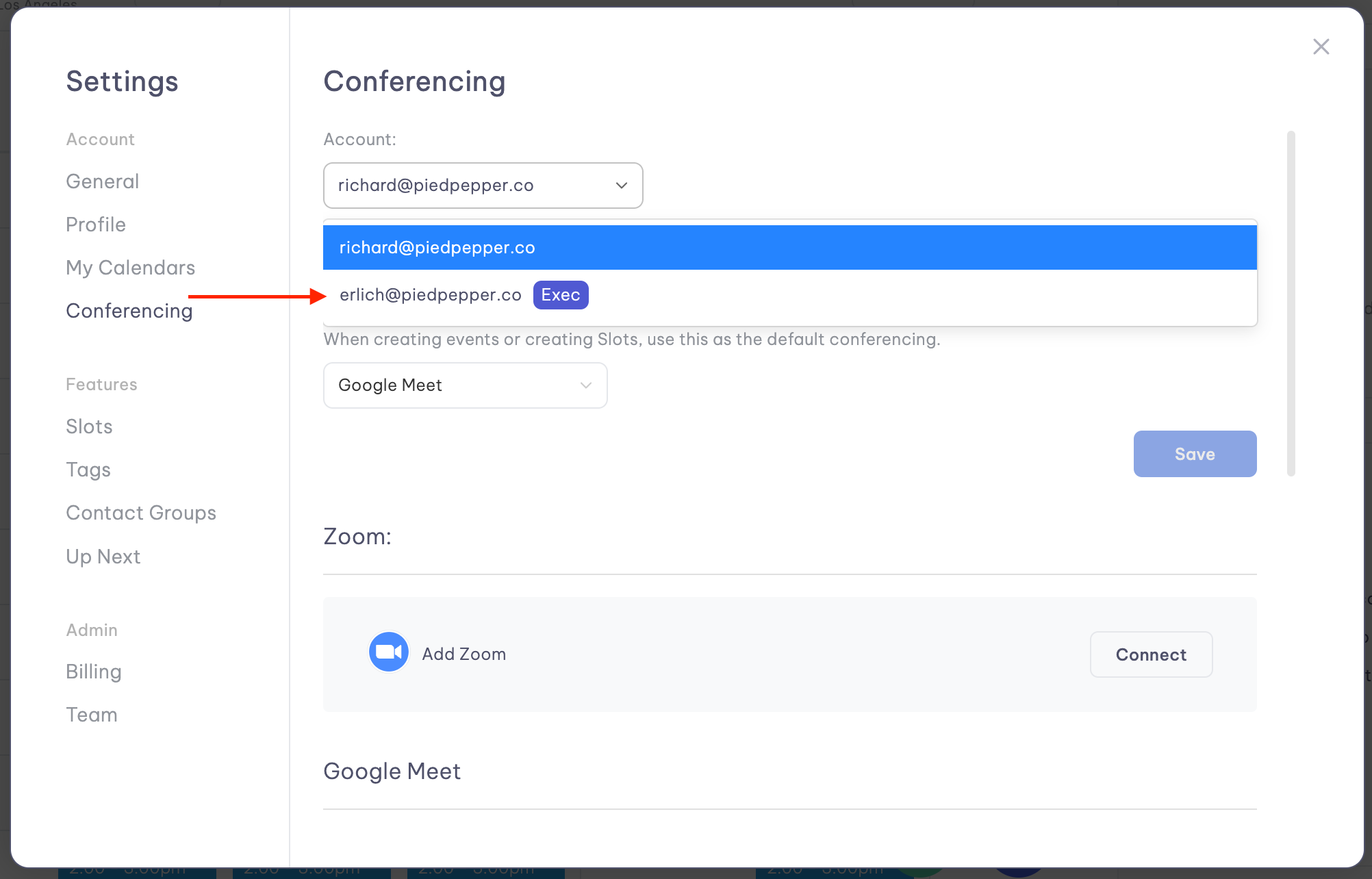
- Check for a green banner indicating you have scheduling privileges
If the banner doesn't appear, your executive may need to grant you scheduling privileges:
- Ask your executive to log in to their Zoom account and access Settings
- Navigate to the Meeting tab and select Other
- Under Schedule Privilege, click Add next to "Assign scheduling privilege to"
- Have them enter your email address and click Save
- Once complete, refresh Vimcal by typing "refresh" in the Command Center
Setup default conferencing
Different executives may prefer different solutions for meetings. You can configure different conferencing solutions for each account you manage:
- Switch to the desired account using the avatar dropdown in the top right of your Conferencing Settings
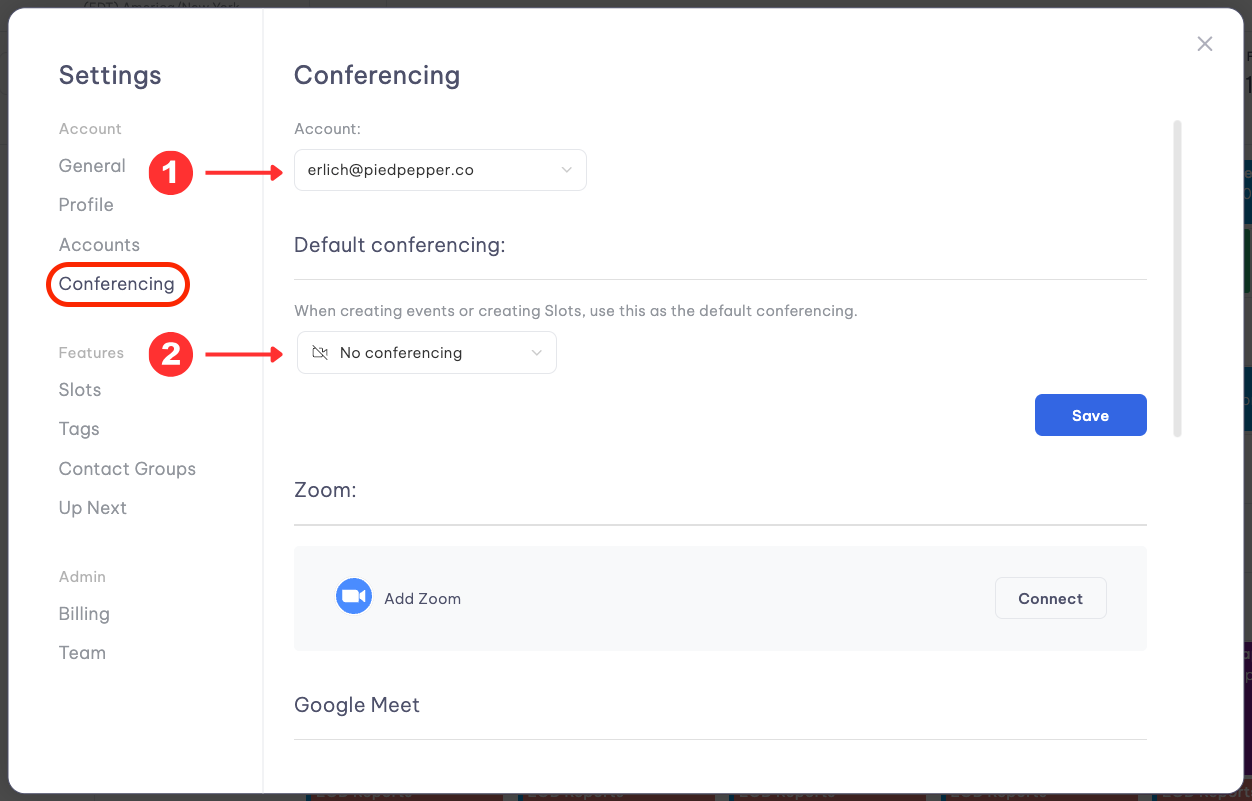
- Set the appropriate default conferencing option for that specific account
- Repeat for each executive account
Troubleshooting
If conferencing links aren't generating correctly:
- Verify that authentication is complete for all required accounts
- Check that scheduling privileges have been properly granted
- Try refreshing Vimcal
- Ensure you've selected the correct conferencing option when creating events
For persistent issues, contact Vimcal support at [email protected].
Next steps
After setting up your account and adding executive calendars, you're ready to:
- Check out the Top Features for EAs