Color Coding and Tagging
Transform your calendar from a simple schedule into a powerful productivity tool with our Tags feature. By visually distinguishing your events and categorizing them, you can instantly grasp your day's structure, track how you spend your time, and make data-driven decisions about your schedule.
How to create Tags
- Go to the Command Center (Cmd + K for Mac or Ctrl + K for PC) and type Update Tag Settings.
- Click Create new tag or Create your first tag.
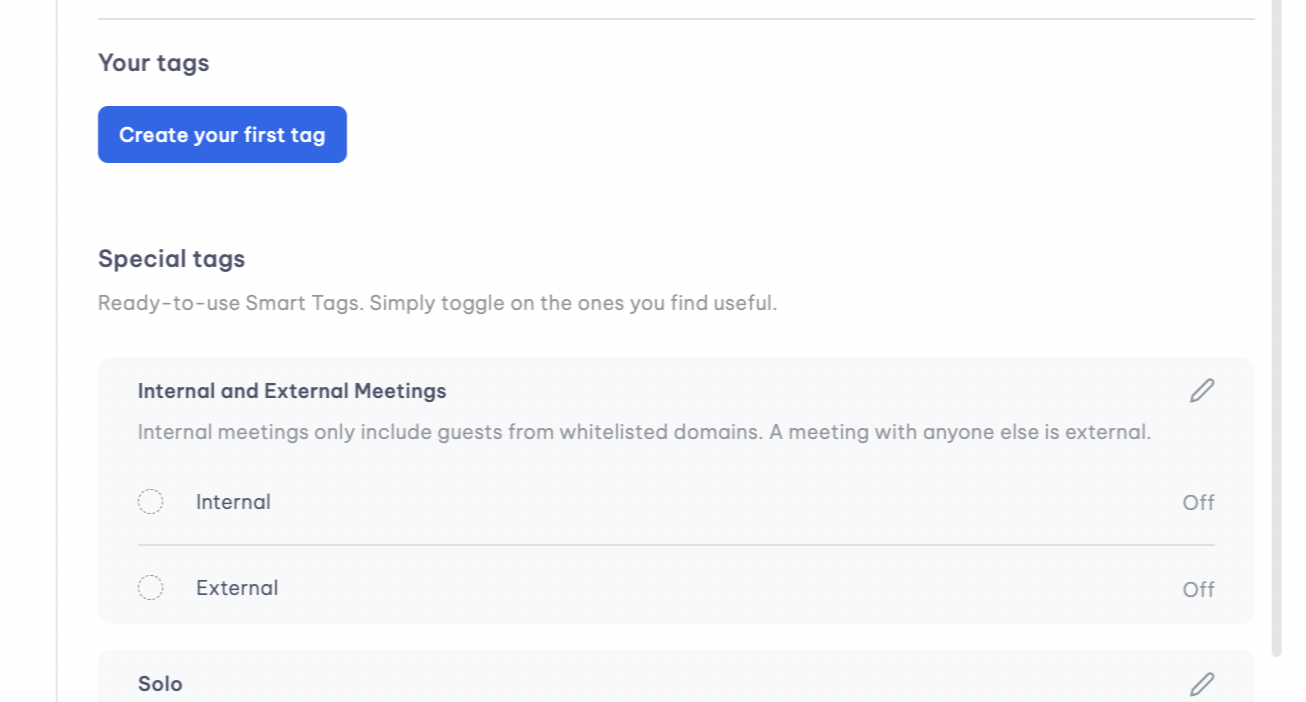
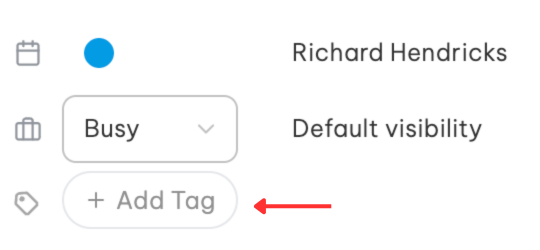
- Once you're done, you can begin assigning tags to your events.
Auto-tags
The most powerful part about tags is that they can be automatically applied on your behalf. Simply set some rules and watch your calendar organize itself.
- Follow Steps 1 and 2 above when creating new tags.
- Select Add auto-tagging.
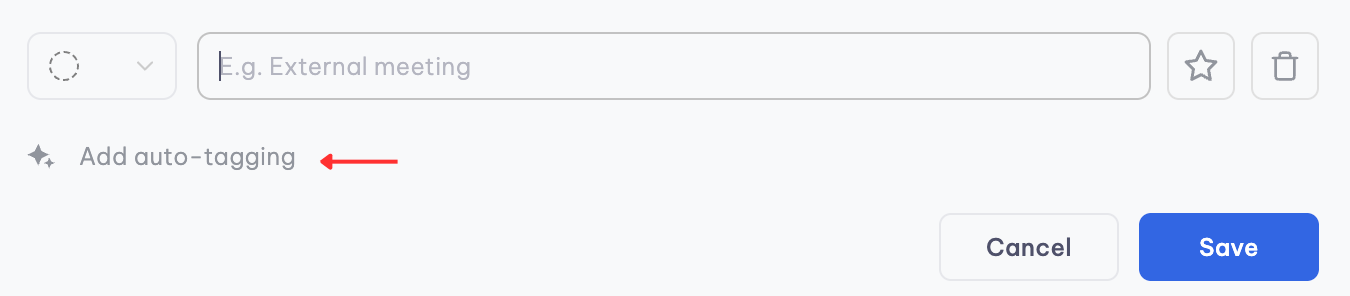
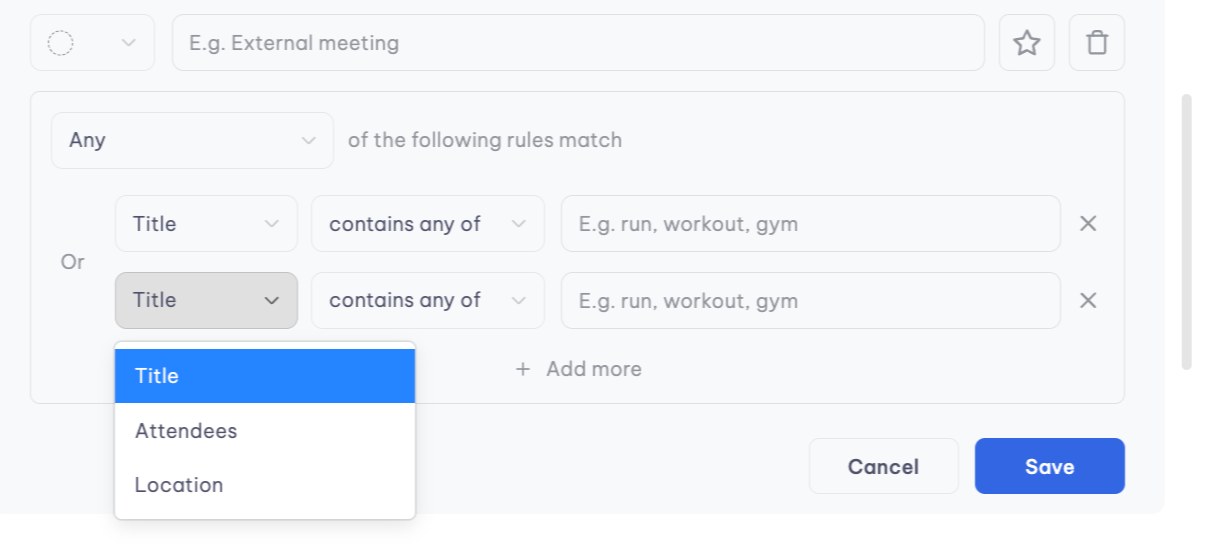
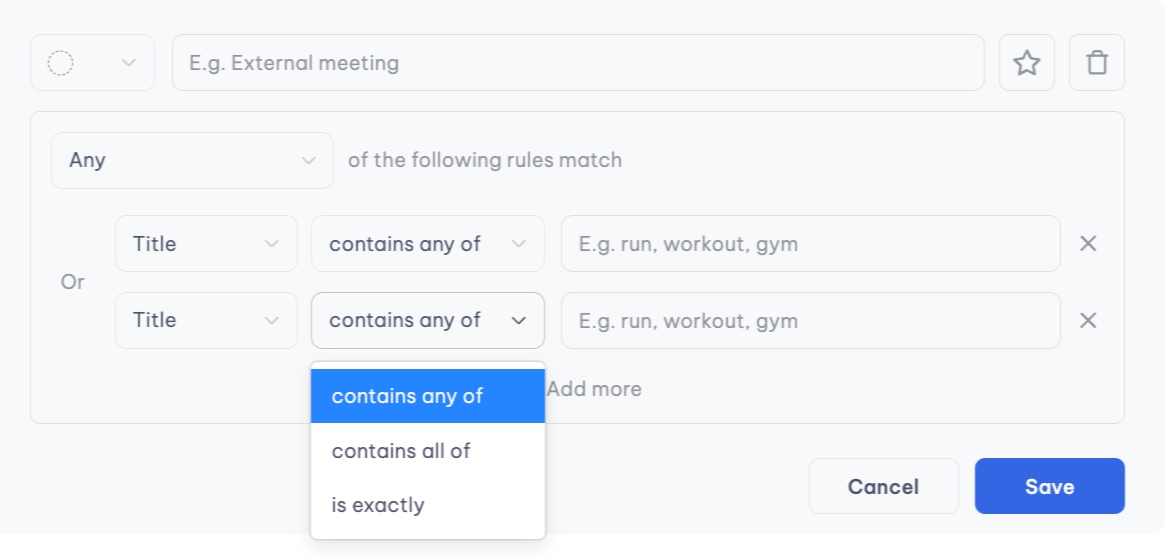
- You can configure how tags are assigned using different rules.
Special tags
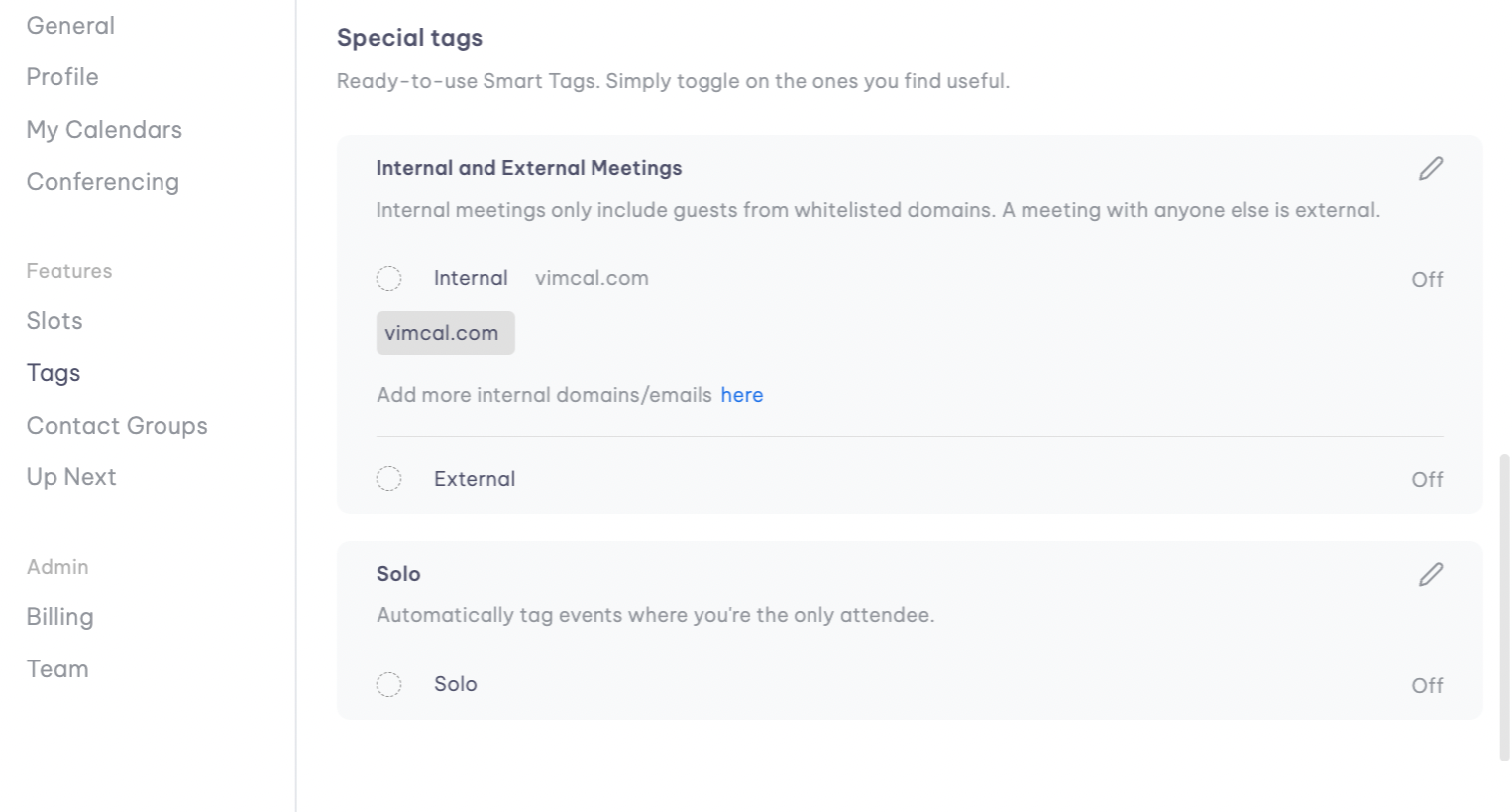
Special Tags are a select few Vimcal default Tags with special rules. Just toggle on these ready-to-use smart tags and get instant insights into how you're spending your time.
Internal tags
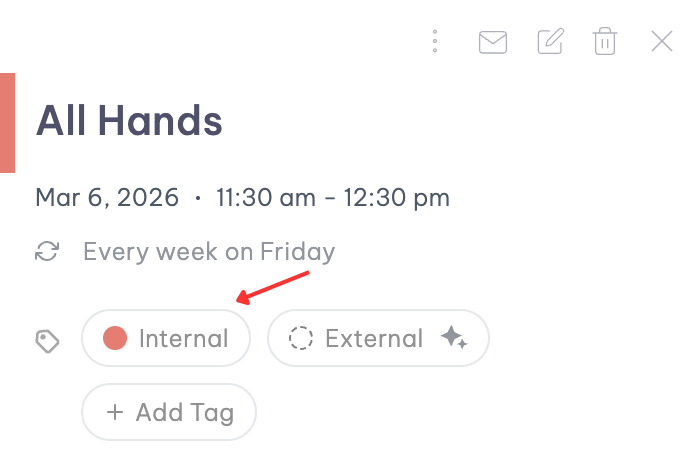
When enabled, an "Internal" tag will automatically be added to any meeting where 100% of the attendees are from your company.
These tags will tell you:
- How much time you spend collaborating with team members
- The proportion of internal versus external interactions
You can define which domains or emails constitute an internal meeting by following the instructions under the Ignore internal conflicts section.
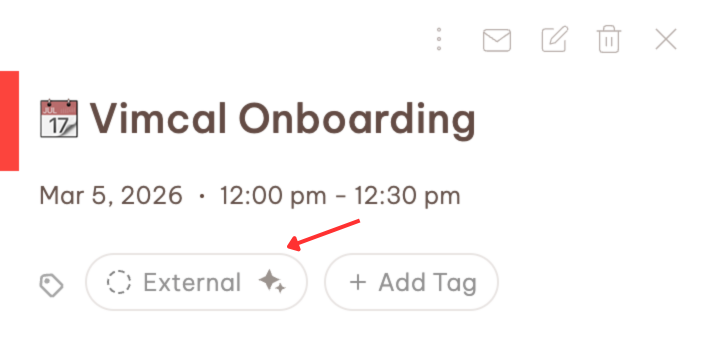
External tags
External tags highlight meetings with people outside your organization.
These tags help you:
- Track client-facing time
- Monitor investor or partner meetings
Solo tags
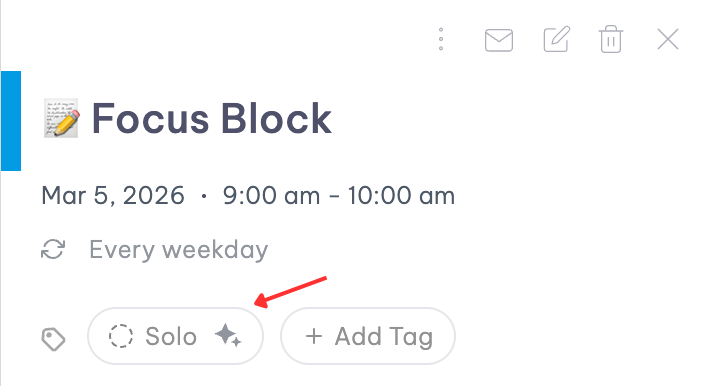
They mark events with no other attendees — your personal time blocks, deep work sessions, reminders, or individual activities.
With these tags, you can:
- Visualize dedicated personal or focus time
- Ensure you're protecting space for individual work and self-care
Color from Tags
Tags let you color-code calendar items too, and they'll only be visible in Vimcal. You can also assign multiple tags to an event.
Event tags sync between you and your executive's calendars. When you tag your executive's event, the color change is only visible to you in Vimcal. If your executive doesn't use Vimcal, they won't see these color changes on Google or Outlook.
The exception occurs when your executive uses Vimcal and provides delegate access via magic link. In this case, both of you will see the same color tags, but exclusively within the Vimcal app.
If your executive is also a Vimcal user, their tags can be shared with you if they grant you delegate access to their Vimcal account. This seamless sharing ensures that both the executive and their assistant have a comprehensive, synchronized view of the calendar.
Color coding
The colors you assign also provide an immediate visual context of your day or week. For example: blue for work meetings, green for personal development, and orange for client projects.
Google color labels
Google color coding syncs automatically with Vimcal. However, any changes to the names of colors (e.g. Color Labels) must be made directly in your Google Calendar. If you want to adjust or create new colors, you'll need to do so within the Google Calendar interface.
Outlook Categories
For Outlook users, migrating categories requires a bit of teamwork. Our team needs to work directly with your IT department to transition your existing categories. It's important to note that you cannot create new categories within Vimcal itself. Any category additions or edits must be completed through Outlook.
Color labels in Vimcal
As an alternative to Google Color Labels, you can take advantage of our Color Labels feature for a more streamlined experience within the app.
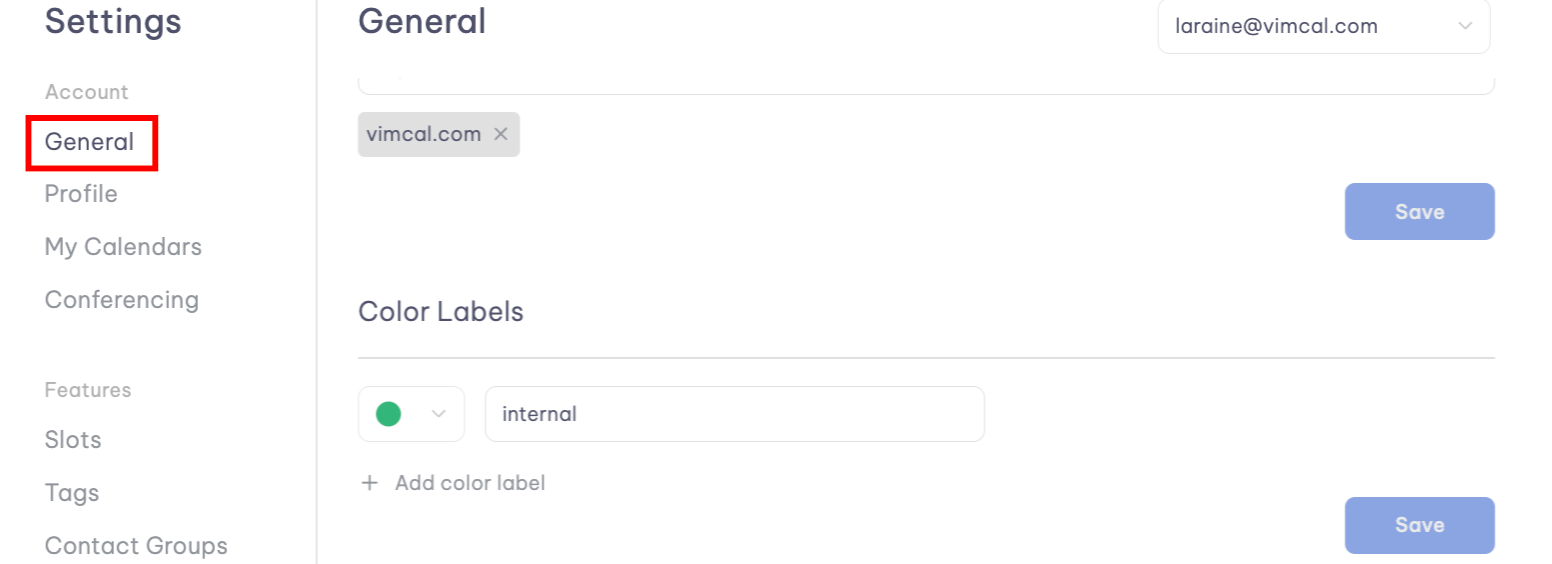
Simply navigate to Settings > General > Color Labels to manage and customize your labels directly in Vimcal. This option is perfect if you prefer to handle everything in one place without relying on external tools.