Templates & Sticky Notes
Save repetitive event details and commonly used text snippets for quick reuse.
Event Templates
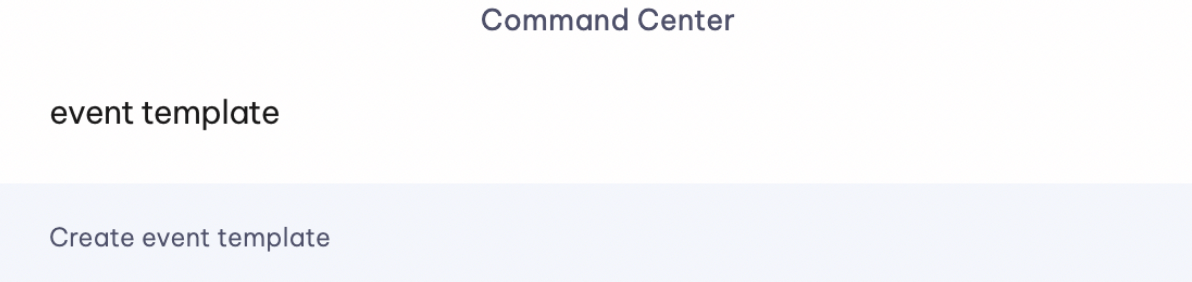
Event Templates allow you to save repetitive event details and reuse them, eliminating manual data entry. You can create an Event Template by accessing the Command Center with Cmd + K (Mac) or Ctrl + K (PC) and typing "Create event template."
Creation methods:
- Use the Command Center shortcut
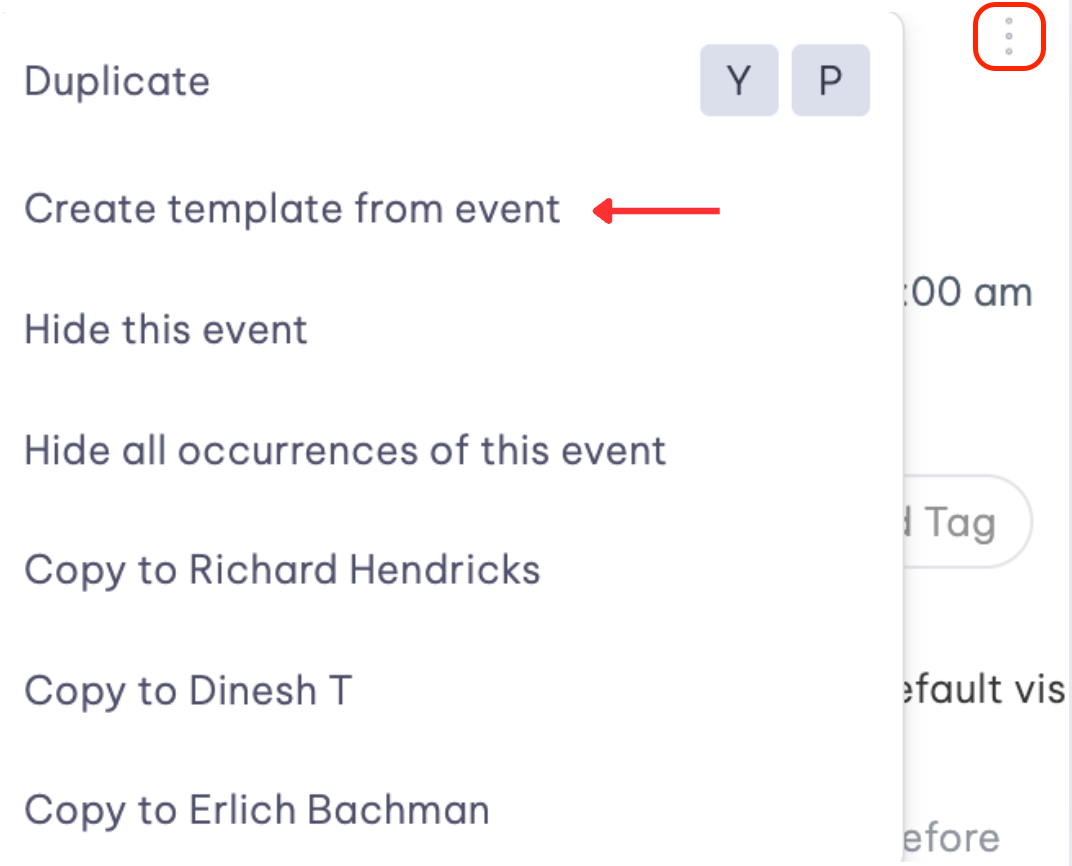
- Create from existing events by clicking the vertical ellipsis and selecting "Create template from event"
You can also search for "Create event template" in the Command Center.
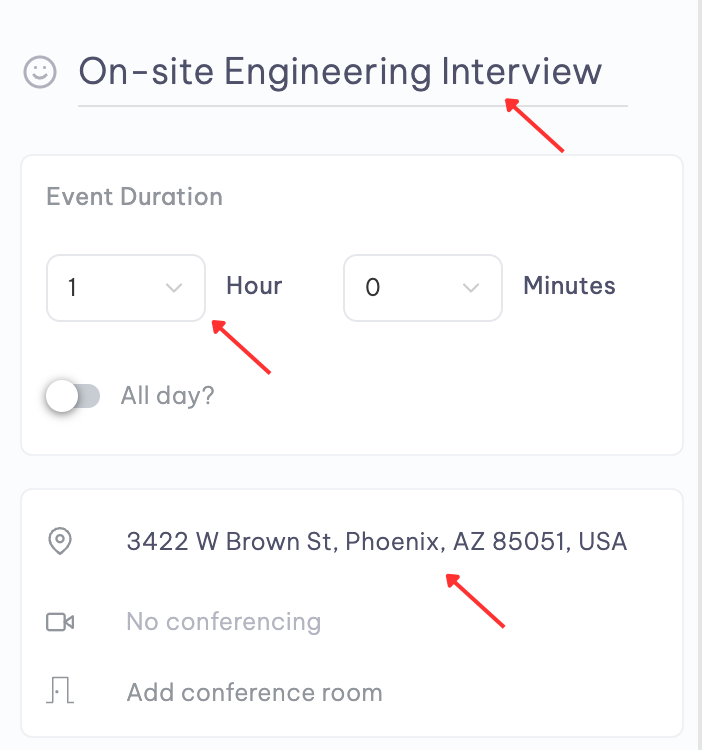
You can populate templates with constant details like event title, duration, and location. For example, you could set up an interview template with the office address and directions included in the description.
Using Event Templates
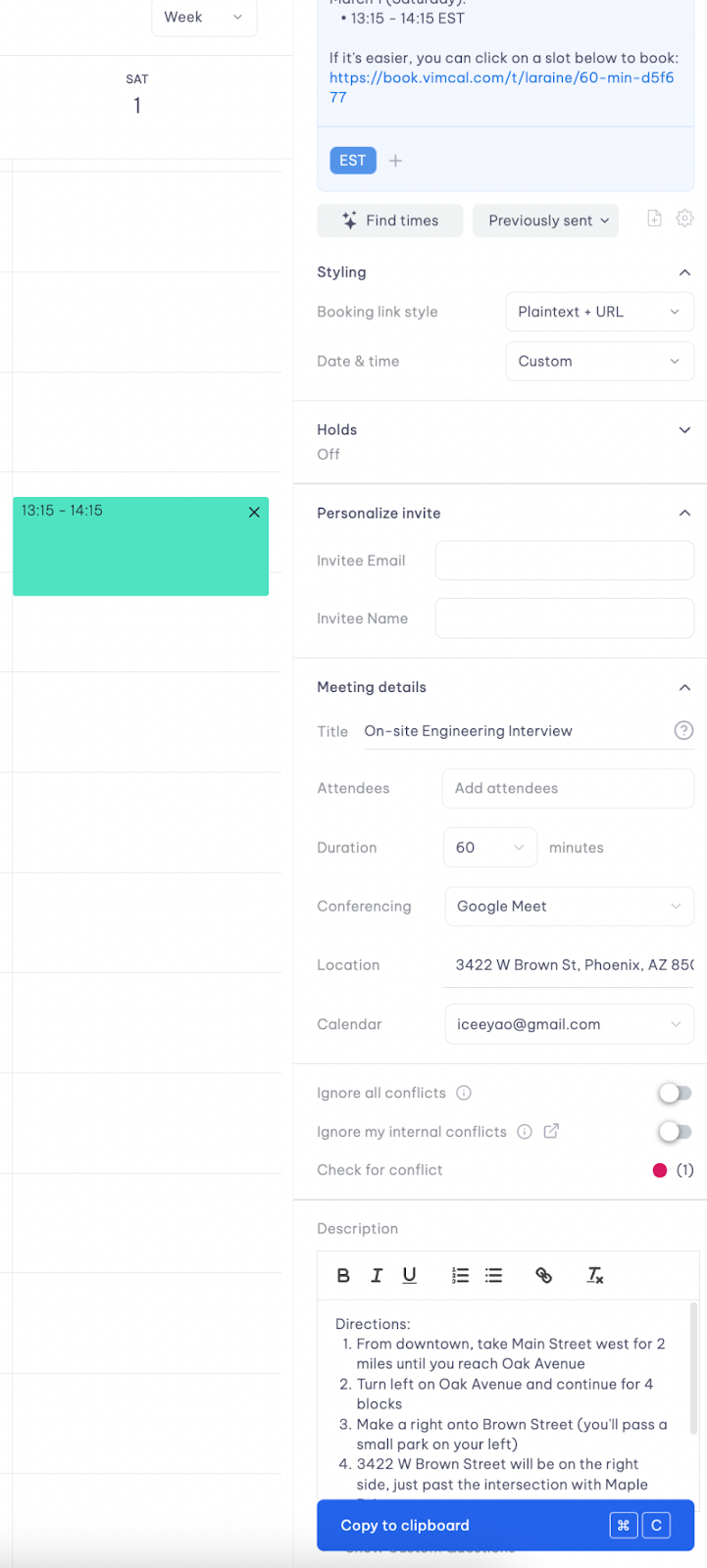
Templates are accessed via Cmd + ; (Mac) or Ctrl + ; (PC). The system intelligently only updates empty fields to preserve any changes you've made if you already have the event form up.
Templates can also be applied when creating Slots bookings by pressing A and using the template shortcut.
Sticky Notes
Sticky Notes function as commonly used text snippets for quick access. They're particularly useful for invitation emails and storing frequently needed information like signatures, URLs, and contact details.
Creating a Sticky Note
- Press Cmd + K or Ctrl + K and type "Create a Sticky"
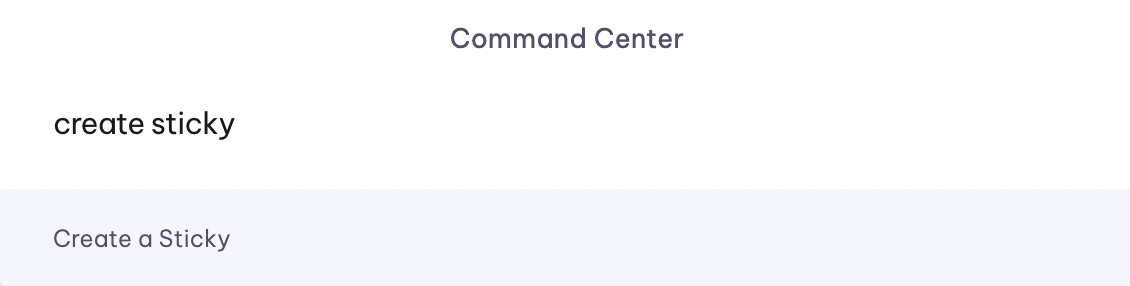
- Add a title
- Input your desired text content
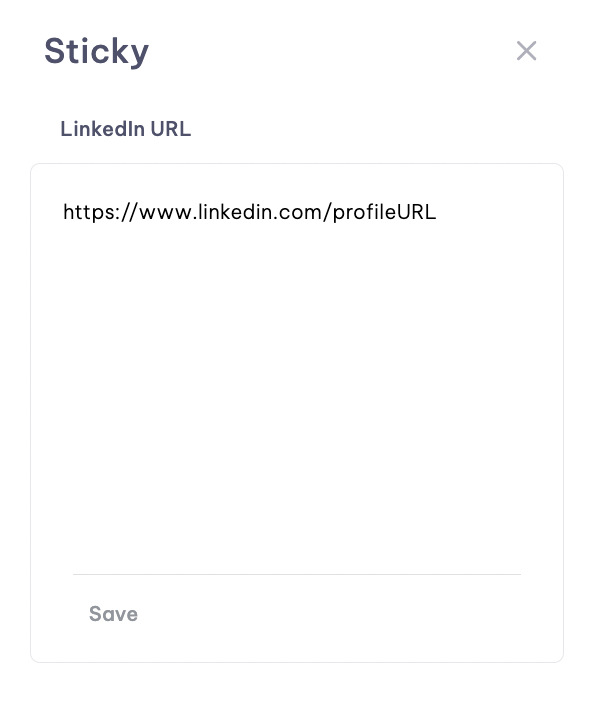
Accessing and using Sticky Notes
Access via Cmd + ; or Ctrl + ; shortcut. When focused on a text field, applying a Sticky inserts content directly into that field. Outside focused fields, content copies to the clipboard for use anywhere.