Free Time Finder
The Free Time Finder helps you identify available time slots by converting suggested meeting times into calendar slots for quick comparison.
How to launch
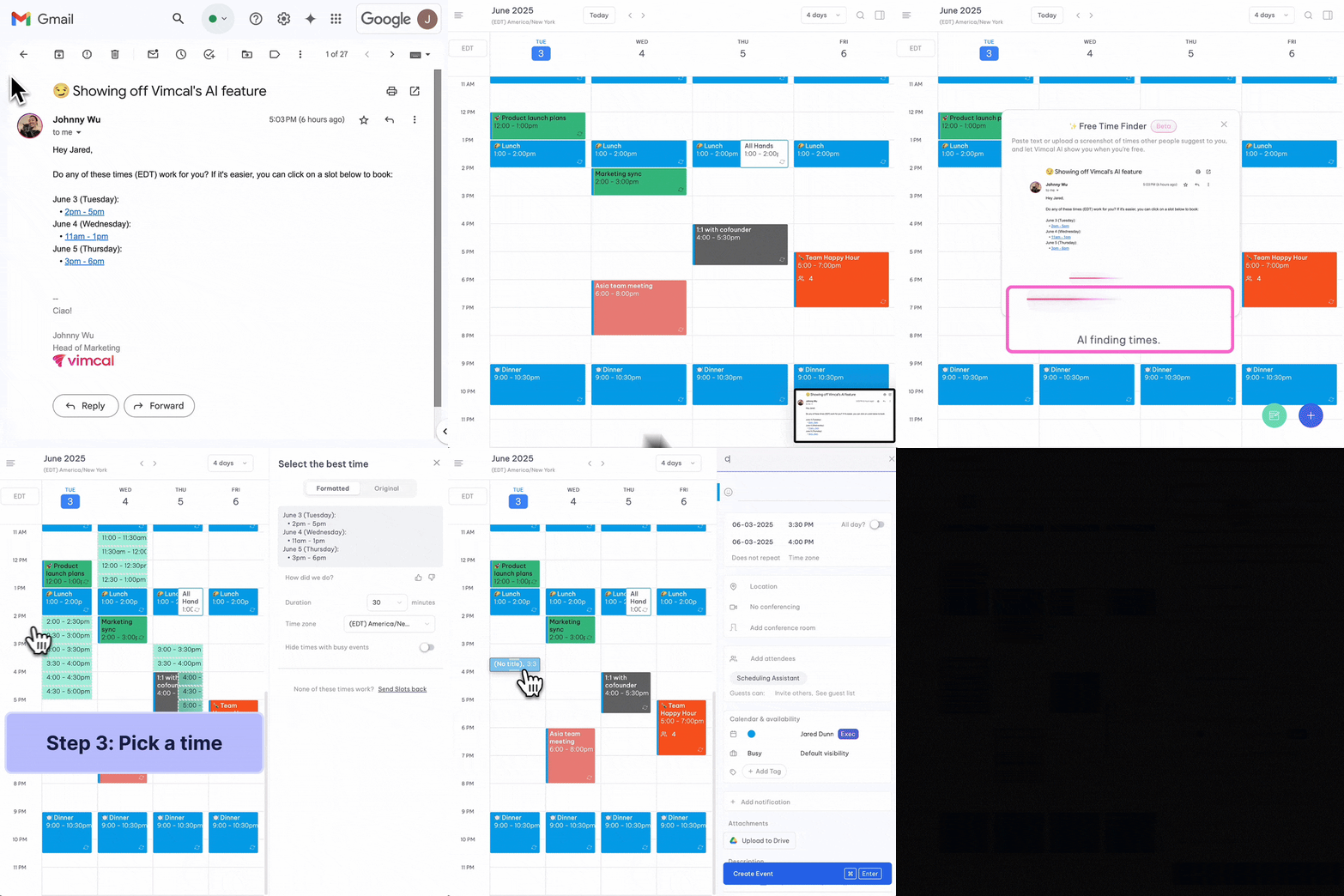
You can activate Free Time Finder in three ways:
- Paste conversation text containing suggested times using Cmd + V (Mac) or Ctrl + V (PC)
- Drag an image or screenshot of the conversation directly into Vimcal
- Paste a Calendly or Vimcal booking link using keyboard shortcuts
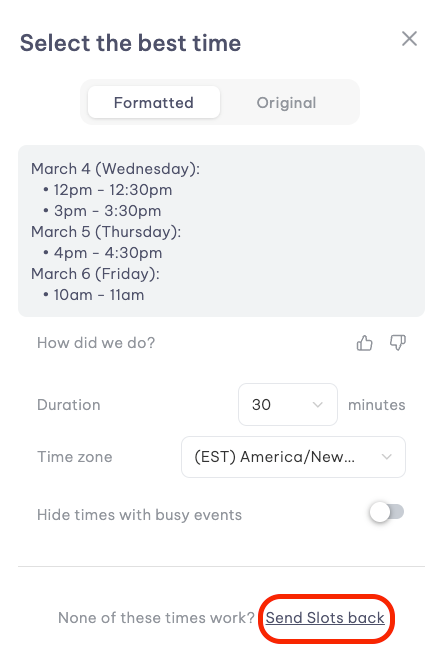
Free Time Finder instantly highlights available slots on your calendar, making it easy to see which times work best with your schedule.
Creating events
Click any open time slot to create your event instantly. Alternatively, you can generate a Slots booking link to share available times with attendees through the side panel.
Finding meeting times
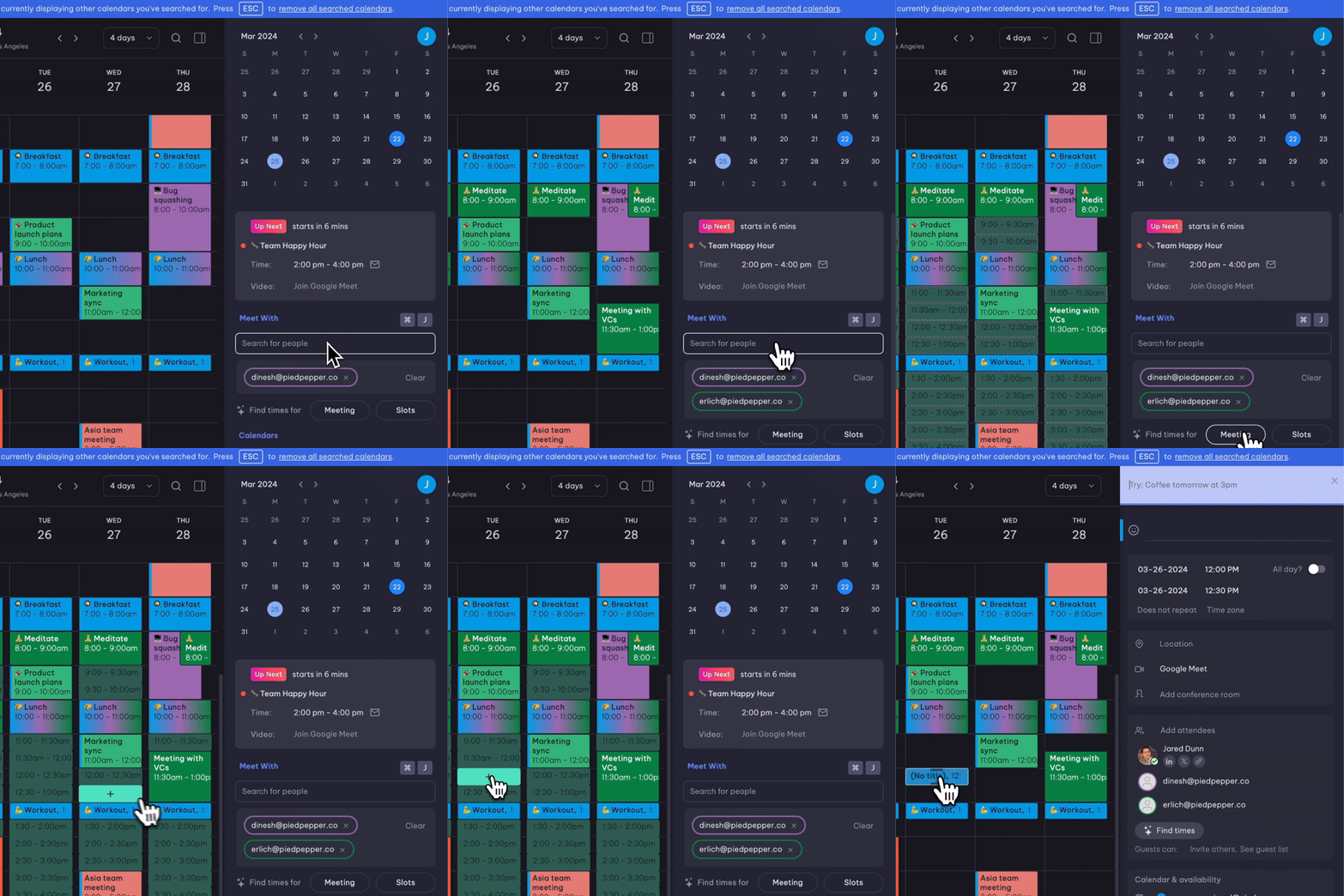
When creating meetings or using the "Meet with" feature, clicking the meeting option beneath a teammate's name reveals mutually available slots.
Note: The teammate must be associated with your company domain in Google or Outlook.
Slots integration
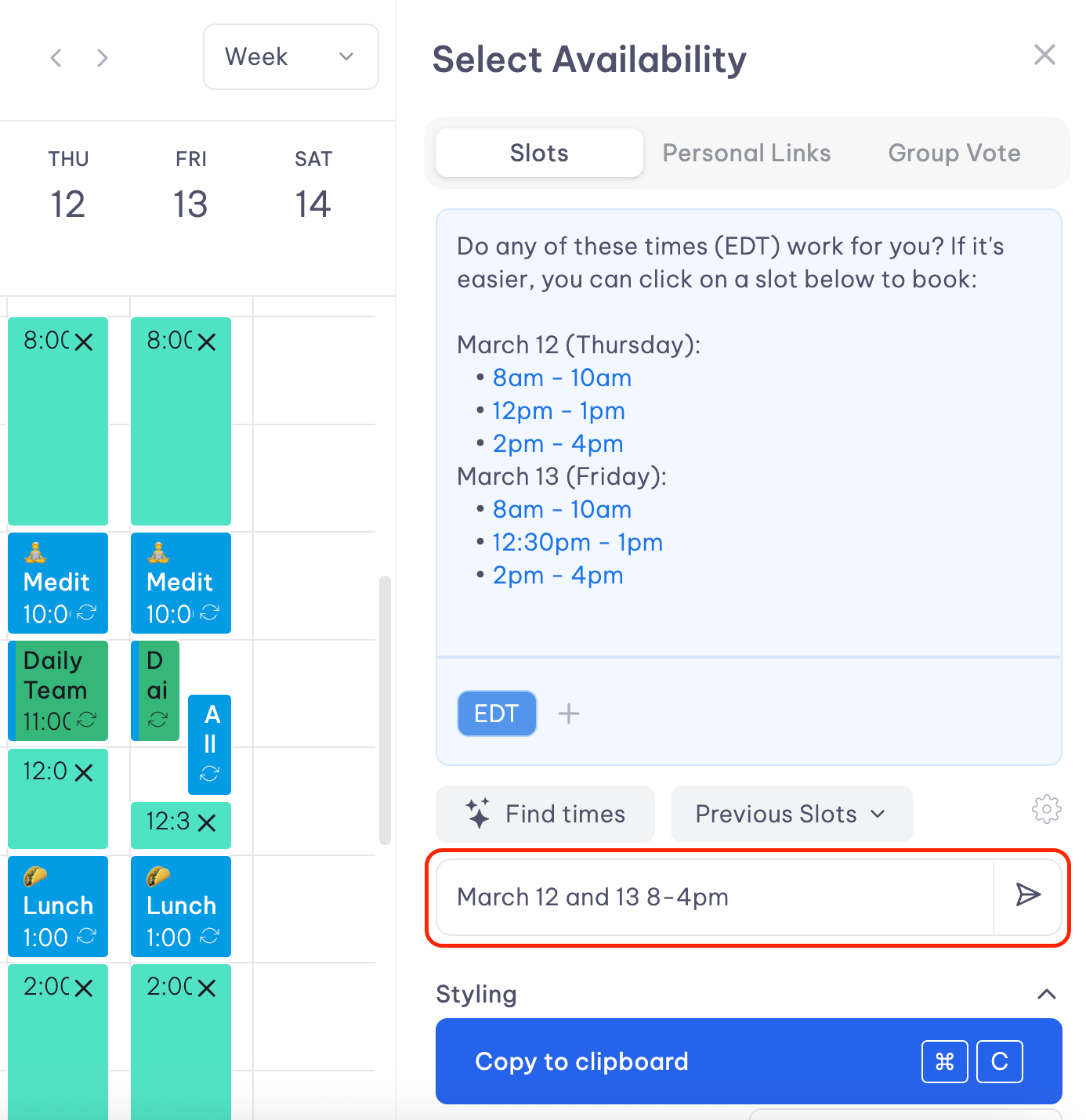
The "Find times" feature within Slots displays open availability.
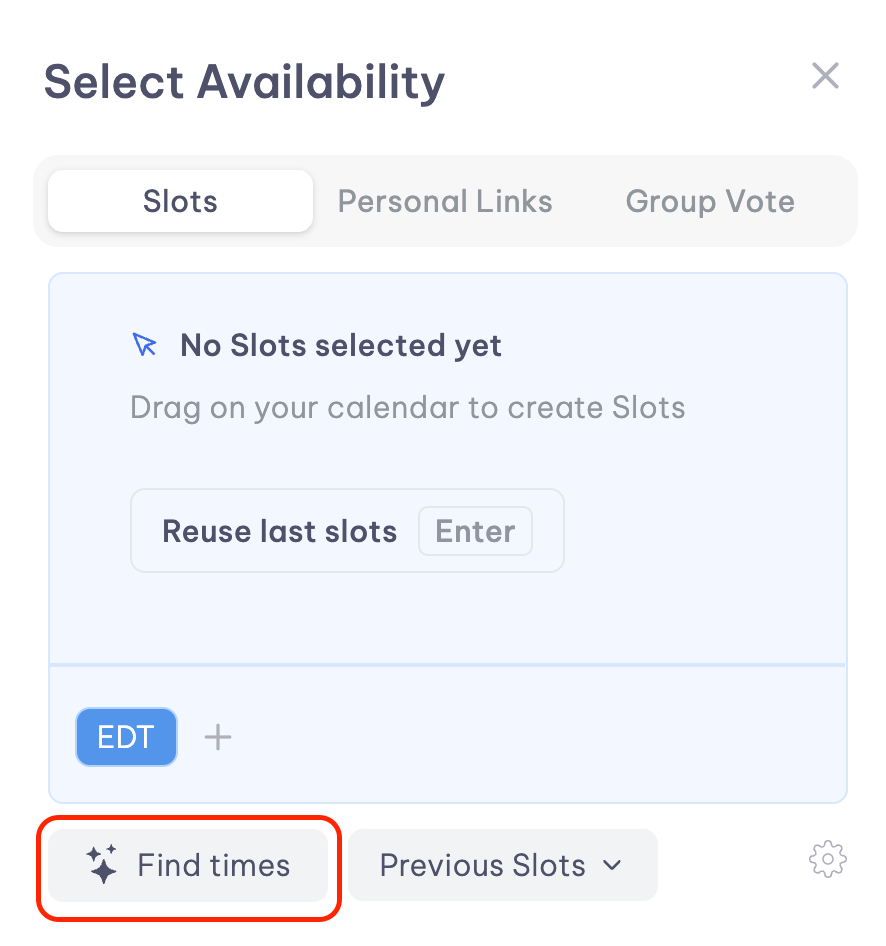
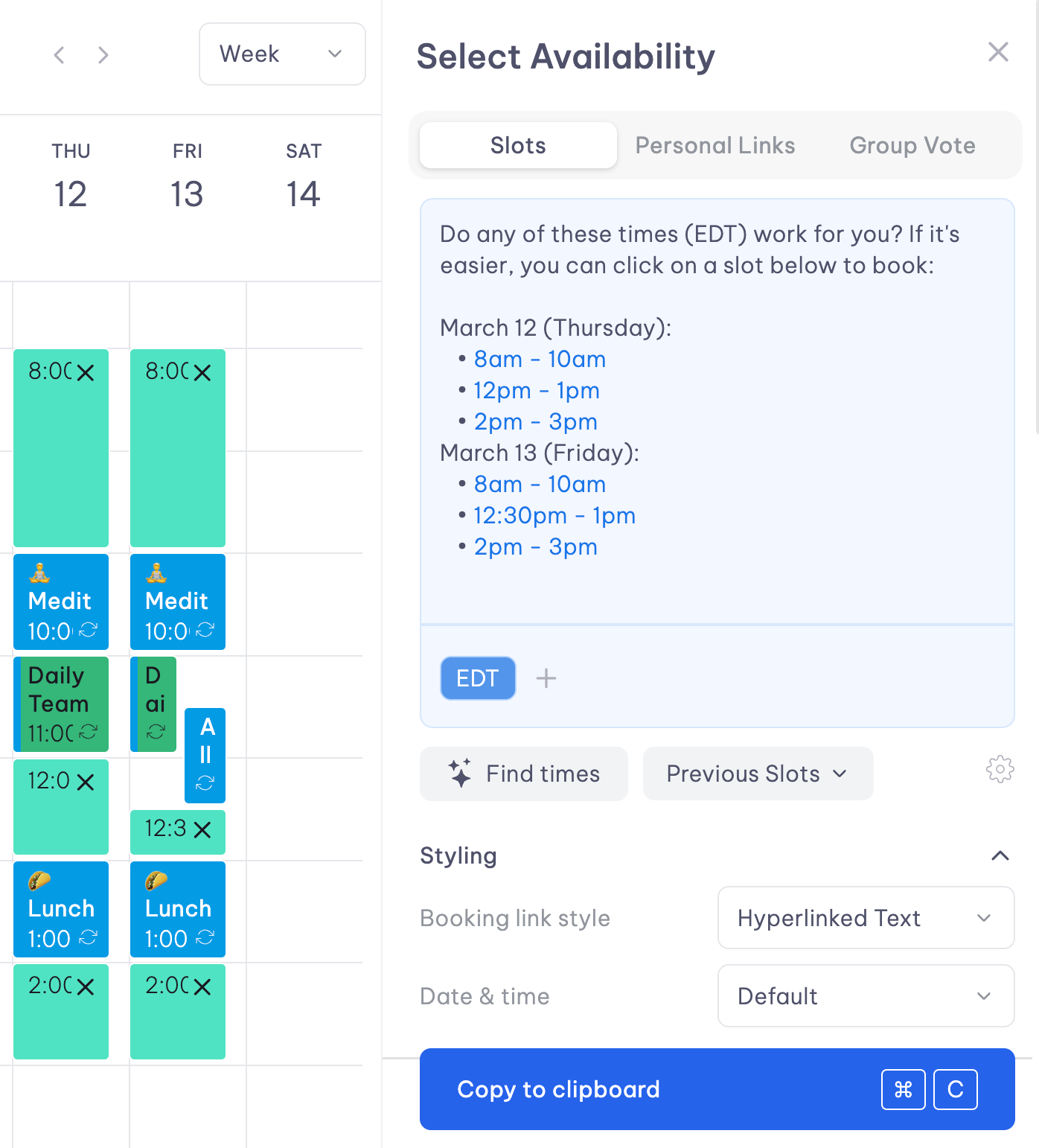
You can customize the time range by typing specific dates and time parameters, then pressing enter to refine results.