Personal Links
Personal Links allow you to set recurring availabilities for different types of meetings, e.g. 30-minute sales calls or hour-long office hours.
When you copy a Personal Link to share, we intelligently populate it with Slots to preserve the personal touch. Copy a link from anywhere in Vimcal using the global hotkeys "Y1", "Y2", etc.
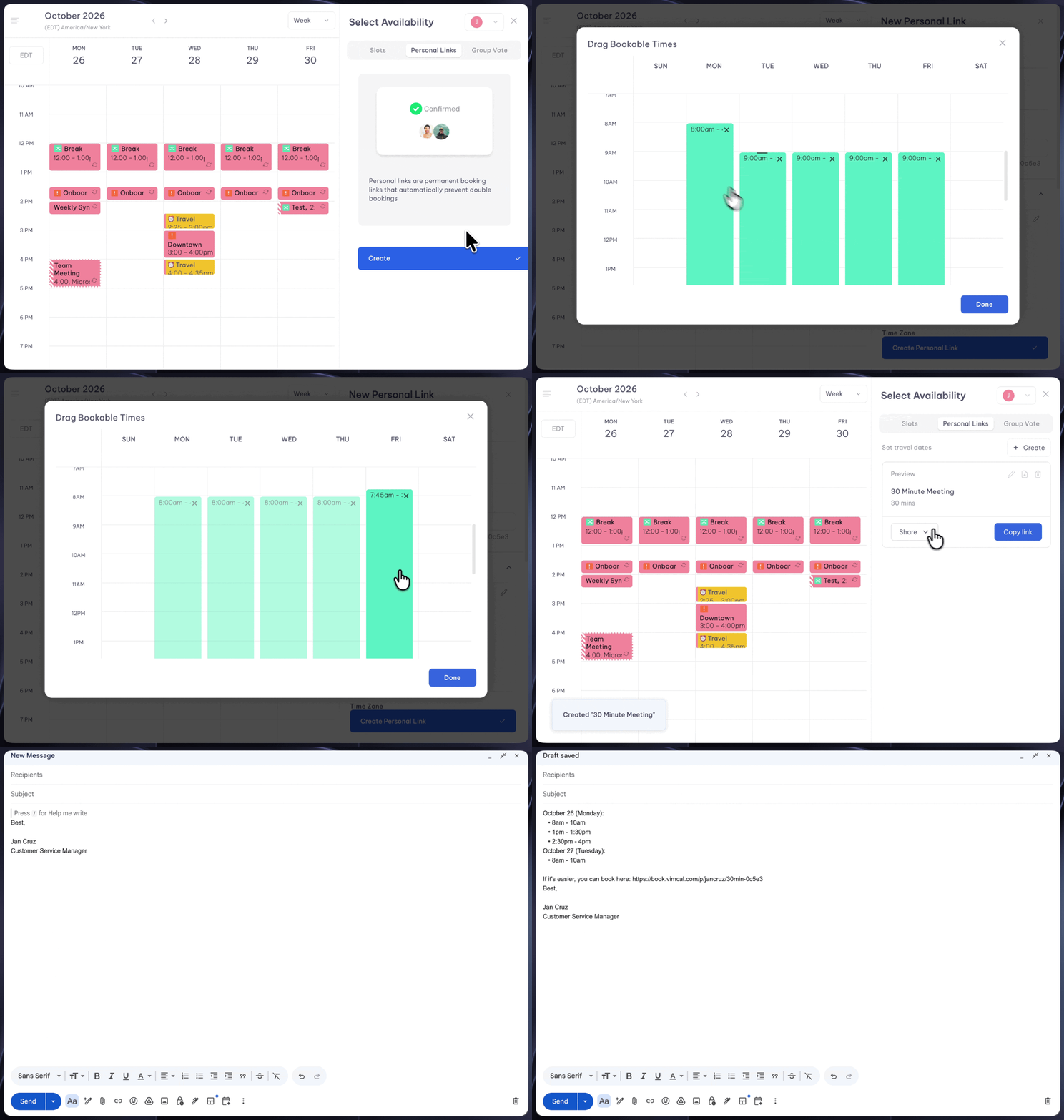
How to create Personal Links
Creating a new link is a breeze. Access the Personal Links page through the global shortcut Shift + Y to start.
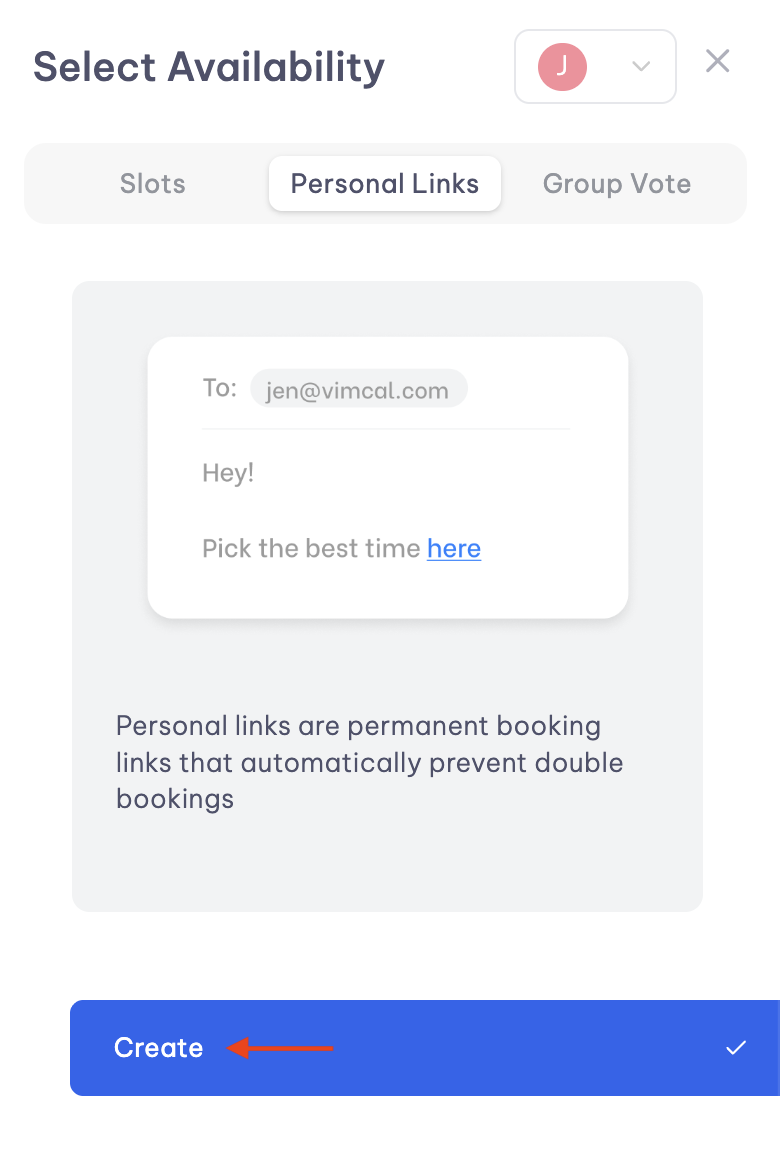
Label
When creating a new personal link, the label section is where you’ll input the title that appears on the booking page.
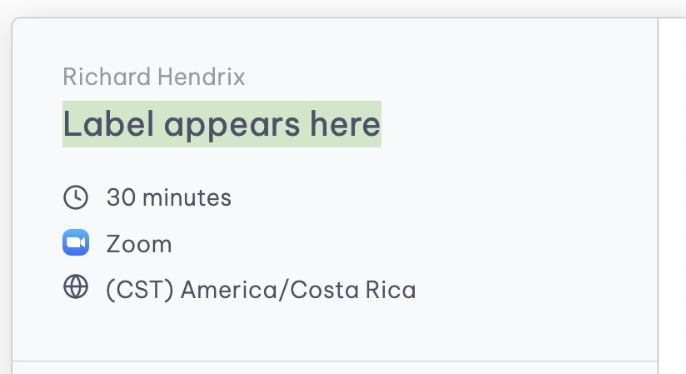
Nickname
The nickname section allows you to add a title that only you can see. This is useful when differentiating between different Personal Links with similar meeting durations.
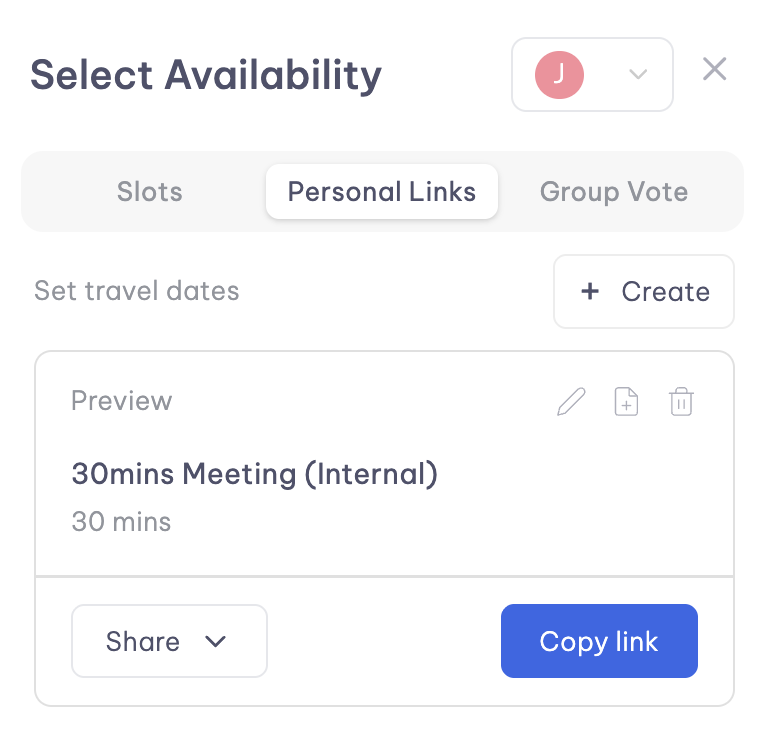
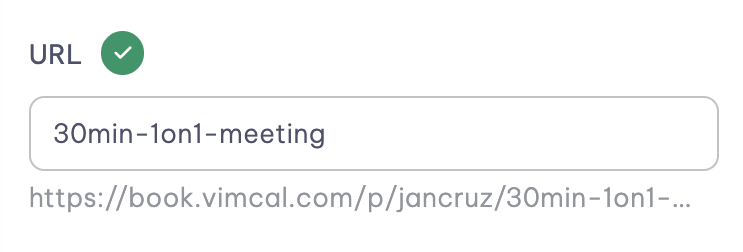
URL
Easily customize your Personal links URL to provide a more personalized and professional feel to your booking pages!
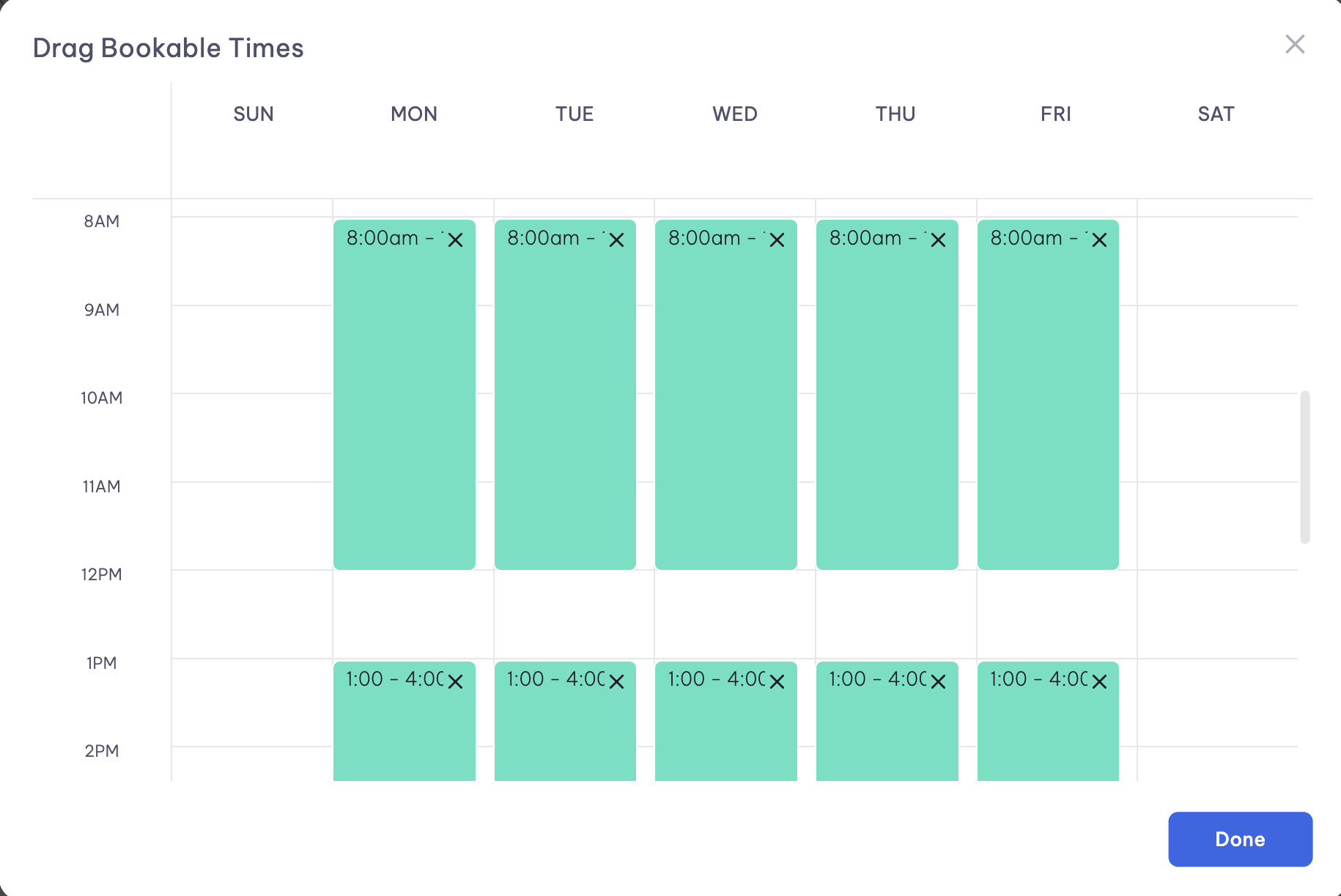
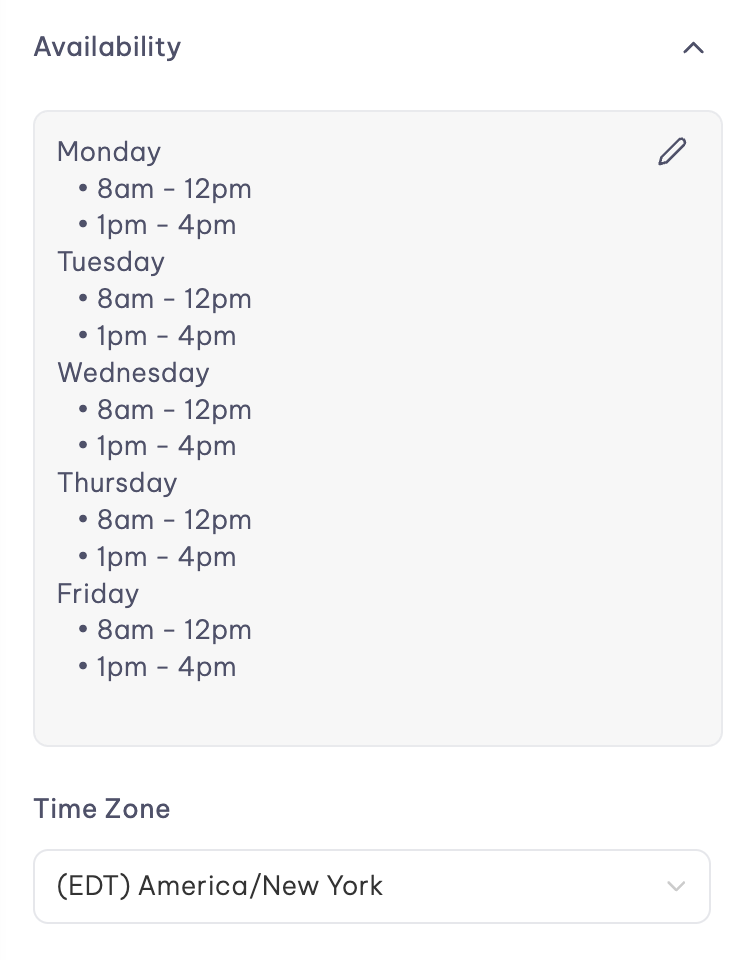
Availability and Timezone
Set your preferred availability times and dictate which timezones your personal link will default to. You’ll want to set it to the timezone you’re currently working in!
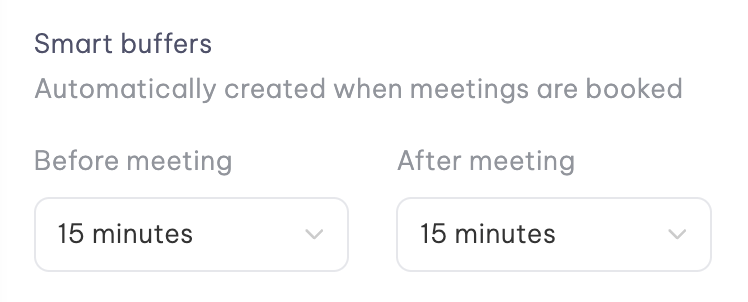
Smart Buffers
Protect your schedule with essential buffer periods between your meetings, ensuring dedicated intervals for pre and post meeting preparation time.
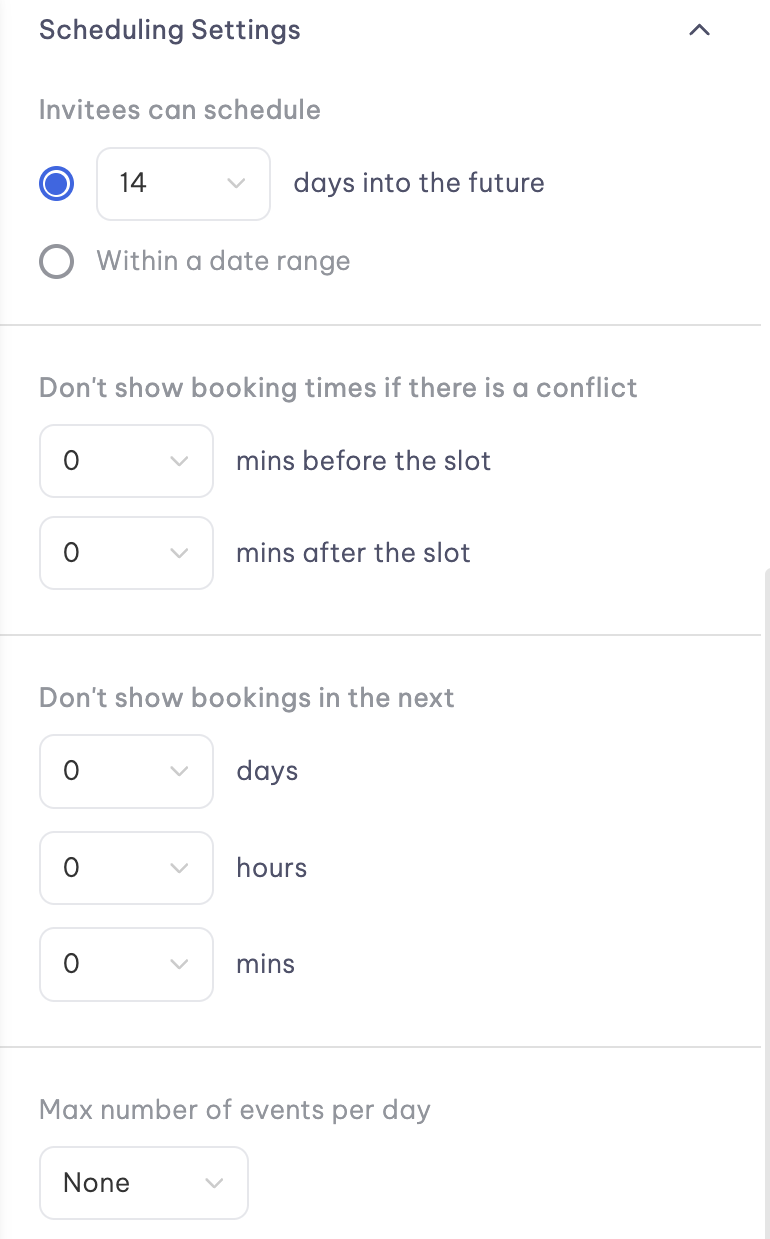
Scheduling Settings
Within a Personal Link’s settings, users have the ability to set:
- How far into the future an invitee can schedule
- Protection from double bookings
- Buffers from current time (blocks recipients from booking 10 minutes before the call is supposed to run).
- Limit the number of meetings booked using your Personal Links
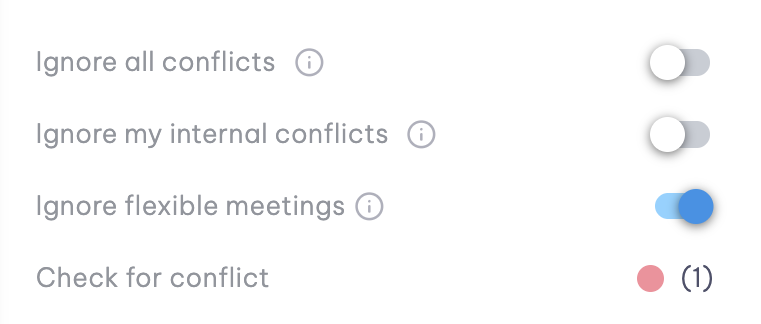
Ignore Conflict
When needing to schedule a high priority meeting, Ignore conflict will allow recipients to book over your calendars under Check for Conflict.
Check for conflict
Check for conflict will ensure that you won’t be double booked.
Simply toggle on the set of calendars you’d like to account for and hit the back arrow to save those changes!
Custom Questions
Easily add additional fields to your booking page.
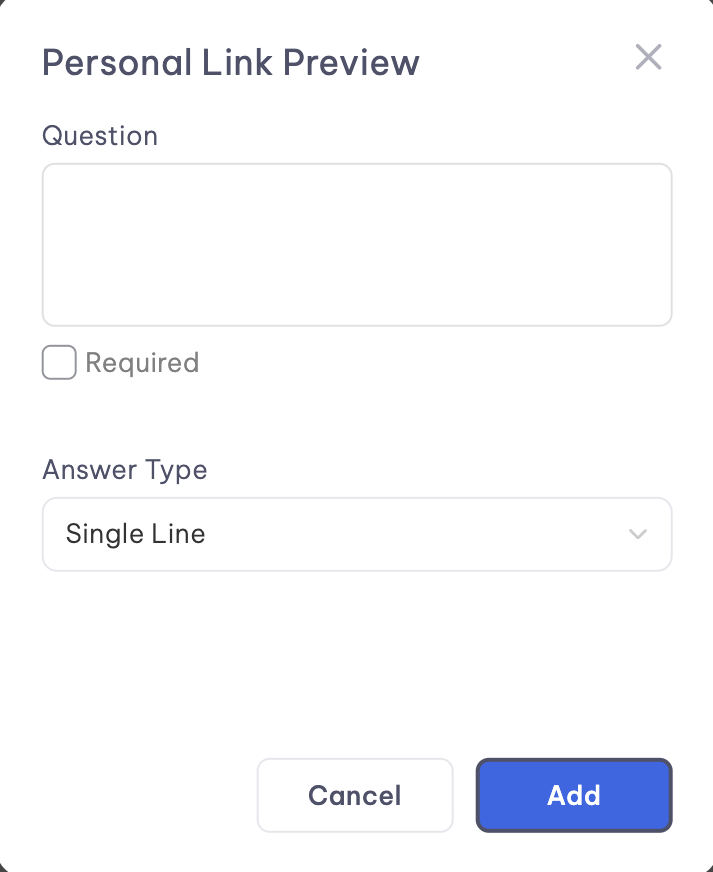
Tip: Company name is a dynamic field that can be pre-populated in the calendar invite